Report
La schermata Report richiede WCPOS Pro.
La schermata Report fornisce strumenti di reporting delle vendite e riconciliazione giornaliera. È progettata principalmente per i report di fine giornata per aiutare i cassieri e i manager a chiudere la giornata.
Per analisi dettagliate su qualsiasi intervallo di date, utilizza WP Admin > Analytics. La schermata Report POS è ottimizzata per riepiloghi rapidi di fine giornata e riconciliazione giornaliera.
Panoramica dell'Interfaccia
Filtri
Nella parte superiore della schermata:
- Filtro di stato - Filtra per stato dell'ordine (Completato, Processing, ecc.)
- Filtro cliente - Filtra per cliente
- Filtro cassiere - Filtra per chi ha elaborato gli ordini
- Filtro negozio - Filtra per negozio (configurazioni multi-negozio)
- Intervallo di date - Seleziona il periodo di reporting (Oggi, Questa settimana, Personalizzato)
Layout a Tre Pannelli
La schermata Report è divisa in tre aree:
1. Grafico delle Vendite (Parte Superiore)
Un grafico a barre che mostra le vendite nel tempo:
- Suddivisione oraria per report giornalieri
- Rappresentazione visiva dei modelli di vendita
- Aiuta a identificare i tempi di picco delle vendite
2. Tabella degli Ordini (Parte Inferiore Sinistra)
Un elenco di ordini inclusi nel report:
- Checkbox - Seleziona/deseleziona ordini per inclusione
- Stato - Icona di stato dell'ordine
- Numero Ordine - ID ordine unico
- Date Created - Quando è stato effettuato l'ordine
- Date Paid - Quando è stato ricevuto il pagamento
- Totale - Importo dell'ordine
Clicca sull'icona delle impostazioni di visualizzazione per personalizzare le colonne.
3. Riepilogo del Report (Parte Inferiore Destra)
I totali calcolati del report:
- Tipo di report a discesa (Predefinito/Offline)
- Informazioni sul negozio (nome, ID)
- Periodo del report (timestamp di inizio/fine)
- Cassiere (se filtrato)
Riepilogo Vendite:
- Totale Ordini
- Totale Vendite Nette
- Totale Tasse Raccolte
- Totale Vendite
- Totale Sconti
Metodi di Pagamento:
- Suddivisione per tipo di pagamento (Contante, Carta, ecc.)
Stampa pulsante per generare un report fisico.
Impostazioni di Visualizzazione
Clicca sull'icona dei cursori () per personalizzare la tabella degli ordini.
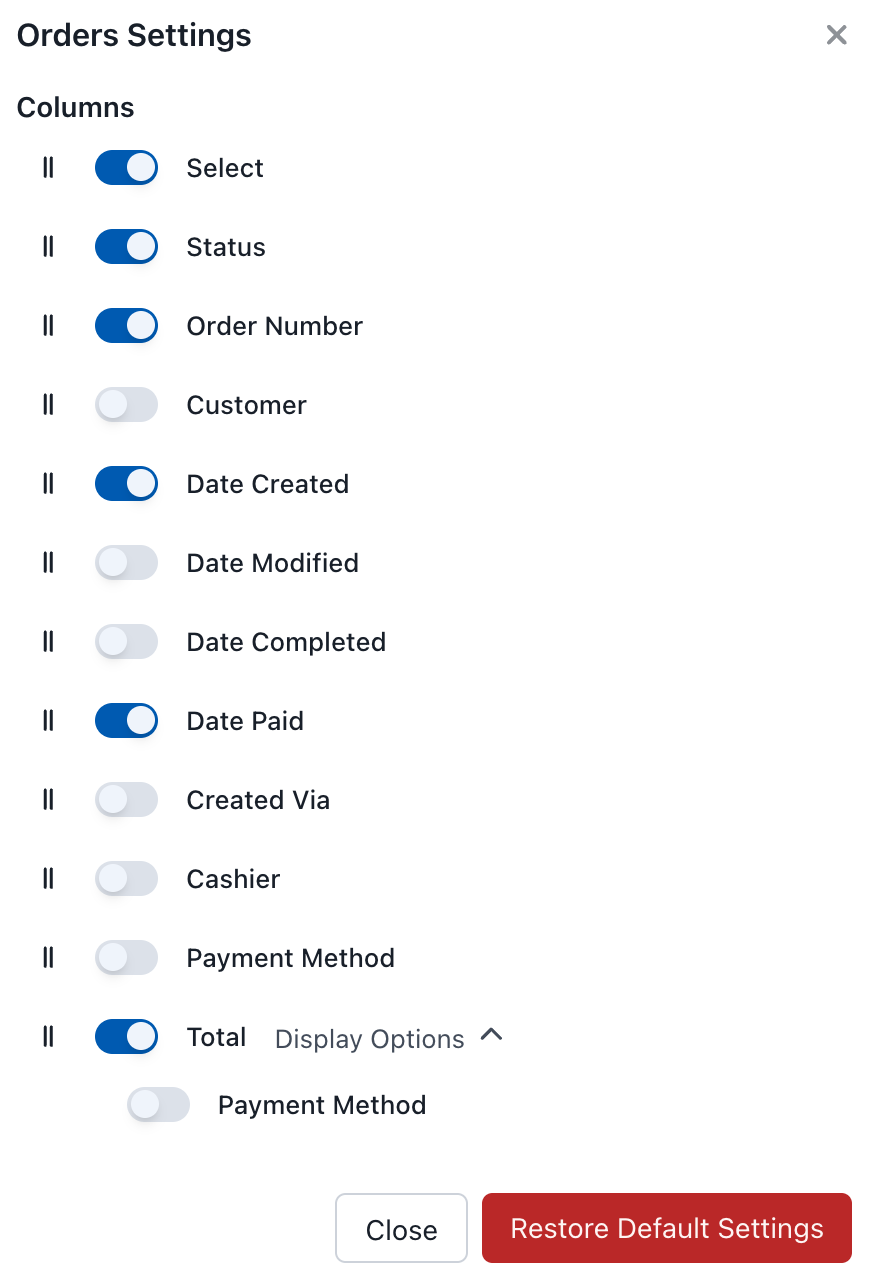
Impostazioni di Visualizzazione Report
Colonne Disponibili
| Colonna | Descrizione |
|---|---|
| Seleziona | Checkbox per inclusione nel report |
| Stato | Stato dell'ordine |
| Numero Ordine | ID ordine unico |
| Cliente | Nome del cliente |
| Date Created | Tempo di creazione dell'ordine |
| Date Modified | Ultima modifica |
| Date Completed | Tempo di completamento |
| Date Paid | Tempo di pagamento |
| Created Via | Fonte dell'ordine |
| Cassiere | Chi l'ha elaborato |
| Metodo di Pagamento | Tipo di pagamento |
| Totale | Importo dell'ordine |
Tipi di Rapporti
Predefinito (Offline)
Il report predefinito viene generato da dati memorizzati localmente. Questo:
- Funziona senza connessione al server
- Fornisce generazione rapida di report
- Utilizza dati già sincronizzati con il dispositivo
Questo è ideale per riepiloghi rapidi di fine giornata, in cui tutti gli ordini pertinenti sono già sincronizzati.
Flusso di Lavoro di Fine Giornata
Riconciliazione Giornaliera Tipica
- Imposta intervallo di date - Seleziona "Oggi" o la data specifica
- Filtra per cassiere (opzionale) - Per report di cassiere individuali
- Esamina gli ordini - Controlla la tabella degli ordini per accuratezza
- Verifica i totali - Confronta con il conteggio fisico del denaro e del terminale di carte
- Stampa report - Genera un registro fisico
Riconciliazione in Contante
- Filtra per mostrare solo i pagamenti in contante
- Annotare il totale in contante dal report
- Conta il contante fisico nel cassetto
- Confronta i totali (dovrebbero corrispondere)
- Documenta eventuali discrepanze
Riconciliazione delle Carte
- Filtra per mostrare solo i pagamenti con carta
- Annotare il totale delle carte dal report
- Confronta con il totale batch del tuo terminale di carte
- Verifica che gli importi corrispondano prima di chiudere il batch
Stampa Report
Clicca sul pulsante Stampa per generare un report stampabile. Questo include:
- Informazioni sul negozio
- Periodo del report
- Riepilogo delle vendite
- Suddivisione dei metodi di pagamento
- Dettagli degli ordini (se selezionati)