Cart Panel
The Cart Panel is the right side of the POS screen where you manage the current order. Here you can view items, edit quantities and prices, select customers, and proceed to checkout.
Interface Overview
Customer Selector
At the top of the Cart Panel:
- Customer badge - Shows the current customer (e.g., "Guest" or customer name)
- Add customer icon () - Create a new customer
- Display settings () - Configure cart columns and options
Click the customer badge to search for and select a different customer.
Line Items
The main area displays items in the current order:
- QTY - Quantity (editable)
- Name - Product name with variation attributes
- Price - Unit price (editable)
- Total - Line total
See Line Items for details on editing.
Add to Cart Options
Below the line items, you can add special items:
- Add Miscellaneous Product - Add a custom item with manual price entry
- Add Fee - Add a fee line (e.g., gift wrapping, service charge)
- Add Shipping - Add a shipping line with manual cost entry
WooCommerce uses three types of line items: line_item (products), fee_line (fees), and shipping_line (shipping). Currently, only manual entry is supported for shipping—the POS does not calculate shipping costs automatically.
Order Summary
- Subtotal - Total before taxes and fees
- Tax - Calculated tax amount (if applicable)
- Total - Final order total
Order Actions
At the bottom of the Cart Panel:
- Order Note - Add a note visible to the customer
- Order Meta - Add custom metadata or view JSON
- Save to Server - Save the order to WooCommerce with status
pos-open
See Order Actions for details.
Main Buttons
- Void (red) - Cancel/delete the current order
- Checkout (green) - Proceed to payment
Open Orders
At the very bottom, a carousel shows all open orders:
- Each cart displays its total
- Click a cart to switch to it
- The current cart is highlighted
See Open Orders for details.
Display Settings
Click the sliders icon () to customise the Cart Panel display.
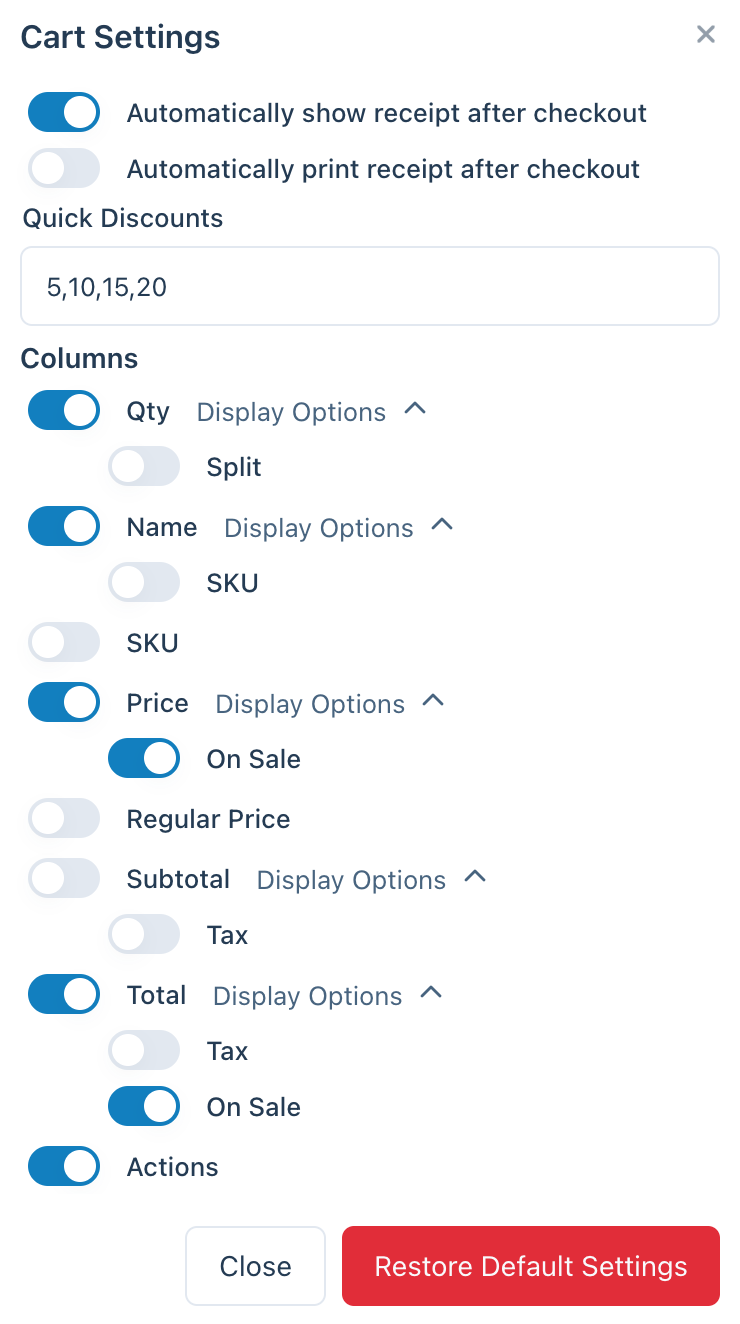
Cart Panel Display Settings
Automatically Show Receipt After Checkout
If enabled, the receipt screen displays automatically after completing a sale.
Automatically Print Receipt After Checkout
If enabled, the receipt prints automatically when shown. This saves time by reducing manual print steps.
Quick Discounts
A comma-separated list of discount percentages that appear as quick shortcut buttons.
For example, entering 5,10,15,20 adds four buttons to the number pad on each line item's Price field. Tapping one takes that percentage off the line's price. See Cart Discounts.
Columns
Configure which columns appear in the cart:
| Column | Description |
|---|---|
| Qty | Quantity of each item |
| Name | Product name |
| Price | Per-unit price |
| Regular Price | Non-discounted price |
| Subtotal | Line subtotal (qty × price) |
| Total | Line total |
| Actions | Remove item button |
Some columns offer extra display options:
| Column | Option |
|---|---|
| Qty | Split (allow splitting items) |
| Name | SKU |
| Price | On Sale indicator |
| Subtotal | Tax amount |
| Total | Tax amount, On Sale indicator |
Restore Default Settings
Click to reset all cart display settings to their original defaults.
Adding Items to Cart
From Product Panel
Click a product in the Product Panel to add it to the cart. For variable products, select the variation first.
Miscellaneous Products
For items not in your catalogue:
- Click Add Miscellaneous Product
- Enter a name and price
- The item is added to the cart
Fees
To add a fee (e.g., gift wrapping):
- Click Add Fee
- Enter a name and amount
- The fee appears as a separate line item
Shipping
To add shipping:
- Click Add Shipping
- Enter the shipping method name and cost
- Shipping is added to the order
Editing Cart Items
All line items are editable directly in the cart. See Line Items for details on:
- Editing quantities
- Changing prices
- Viewing and editing raw JSON data
- Removing items