顧客
顧客画面にはWCPOS Proが必要です。無料版のユーザーは注文時に既存の顧客を選択できますが、顧客一覧の表示や顧客情報の編集はできません。
顧客画面では、POS上で直接、包括的な顧客管理を行えます。WooCommerce管理画面に切り替えることなく、顧客の表示、編集、作成が可能です。
インターフェースの概要
ヘッダーアクション
画面上部には以下があります:
- 検索バー - 名前やメールアドレスなどで顧客を検索できます。
- 顧客を追加 () - 新しい顧客を作成します
- 表示設定 () - 表示する列を設定します
顧客テーブル
メインエリアには以下の情報とともに顧客が表示されます:
- アバター - 顧客のプロフィール画像(またはプレースホルダー)
- 名 - 顧客の名前
- 姓 - 顧客の姓(並べ替え可能)
- メールアドレス - 連絡先メールアドレス
- 請求先住所 - 完全な請求先住所
- 作成日 - 顧客が追加された日付
- アクション - 三点メニュー
フッター
- 同期ボタン付きの顧客数()。長押しでクリアと更新オプションを表示
主な機能
顧客検索
以下の情報で顧客をすばやく検索できます:
- 姓または名
- メールアドレス
- 住所情報
検索では、入力したすべての単語が対象フィールド内で順不同に照合されます。そのため、「jane paris」と検索すると、都市がParisのJaneが見つかります。並べ替えと絞り込みはサーバー上で実行され、端末内にある顧客だけでなく、すべての顧客が対象になります。
新規顧客の追加
POSから直接顧客を作成できます:
- ヘッダーの アイコンをクリックします
- 顧客情報を入力します
- 新しい顧客を保存します
顧客がWooCommerceに作成され、すぐに注文で利用できるようになります。
顧客の編集
顧客情報を更新します:
- 顧客の三点メニューをクリックします
- 編集を選択します
- 詳細(名前、メールアドレス、住所)を変更します
- 変更を保存します
変更はWooCommerceに自動的に同期されます。
表示設定
スライダーアイコン()をクリックして、表示する列をカスタマイズできます。
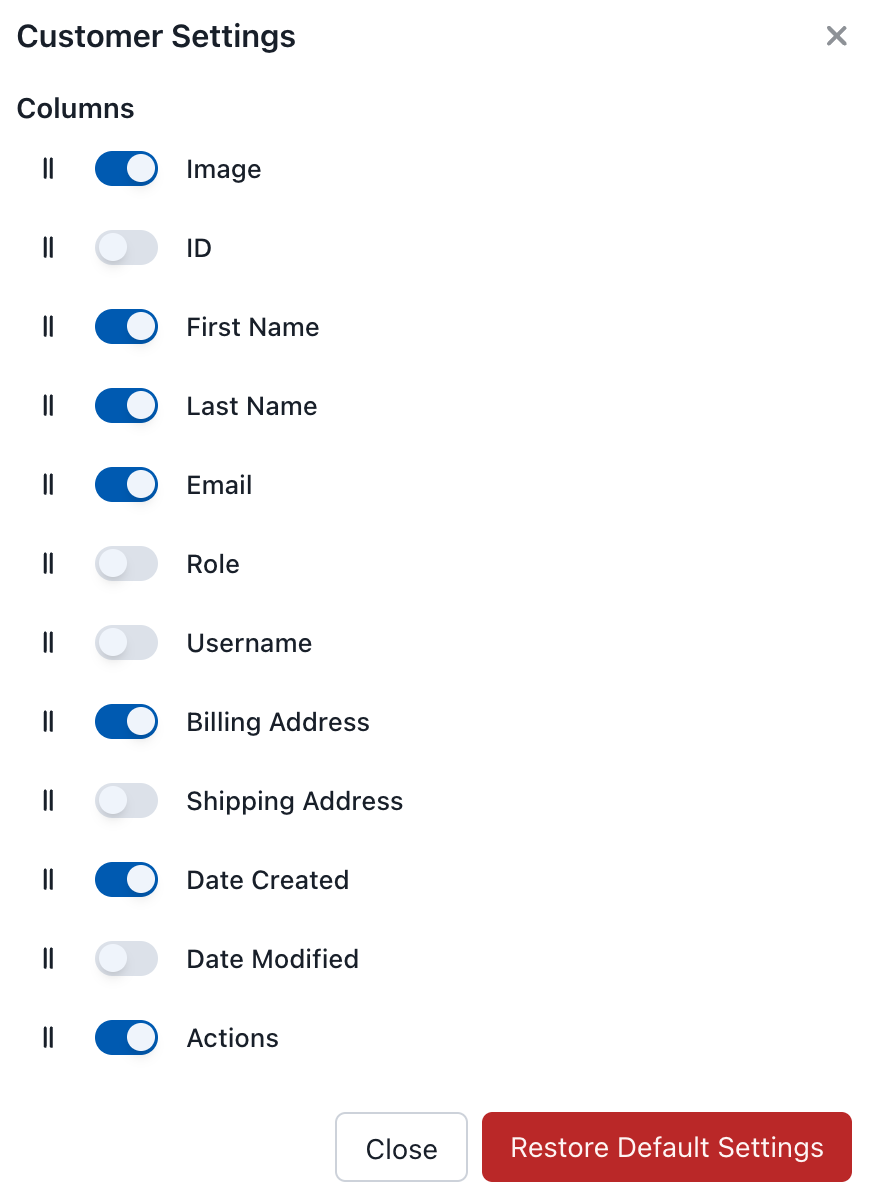
顧客の表示設定
利用可能な列
| 列 | 説明 |
|---|---|
| 画像 | 顧客のアバター |
| ID | WooCommerce の顧客 ID |
| 名 | 顧客の名 |
| 姓 | 顧客の姓 |
| メール | メールアドレス |
| 権限 | ユーザー権限(顧客、購読者など) |
| ユーザー名 | WordPress ユーザー名 |
| 請求先住所 | 請求先情報 |
| 配送先住所 | 配送先情報 |
| 作成日 | 顧客が追加された日時 |
| 更新日 | 最終更新日時 |
| 操作 | 編集、同期、削除 |
顧客の操作
三点メニュー(⋮)をクリックするとオプションが表示されます:
- 編集 - 顧客情報を変更
- 同期 - サーバーから顧客情報を更新
- 削除 - ローカルデータベースから削除
POSで顧客を削除すると、顧客はローカルでのみ削除されます。顧客はWooCommerceに残り、次回の同期で再び表示されます。顧客がWooCommerceで削除されると、同期によってPOSからも削除されます。
デフォルト顧客(ゲスト)
顧客が選択されていない場合、注文はゲスト注文として処理されます。ゲスト注文の特徴:
- 顧客名、メールアドレス、住所が紐付けられない
- 注文履歴で顧客別に検索できない
- 注文画面およびWooCommerce管理画面には表示される
ゲスト注文を避けるには、会計前にカートパネルから顧客を選択してください。すべての注文に顧客を紐付ける必要がある場合は、レジ担当者に必ず顧客を割り当てるよう指導することをお勧めします。この操作を強制する組み込み設定はありません。
注文での顧客の使用
注文に顧客を割り当てるには:
- カートパネルで、顧客バッジをクリックします
- 名前、メールアドレス、または電話番号で顧客を検索します
- 顧客を選択します
- 顧客が注文に関連付けられました
顧客情報(請求先/配送先住所)は自動的に注文に使用されます。
同期
顧客データはPOSとWooCommerce間で同期されます:
- デバイス間で同期 - 変更は他のデバイスでも次回の変更チェック時に反映されます
- WooCommerce連携 - 顧客はWooCommerceに保存されます
- オフライン対応 - オフライン時でも顧客を表示できます