POS Discounts
To take money off a sale, pick one of the three ways below. Cart Discounts is the cashier's main page for all three. Developers and report readers can go straight to Where each discount is recorded.
Take money off at the till
- One item costs less — change its price.
- The whole order costs less — take money off the whole order with Add Discount.
- The customer has a coupon — apply a store coupon.
Whether they combine on one order depends on the coupon's rules. Add Discount can't be combined with a coupon marked Individual use only.
Change one item's price
- Tap the price on a line. A keypad opens.
- Press a percentage key (−5%, −10%, −15%), or type the new price.
- Press the tick (✓) to finish, or Done on a phone. The line total changes to the quantity × the new price.
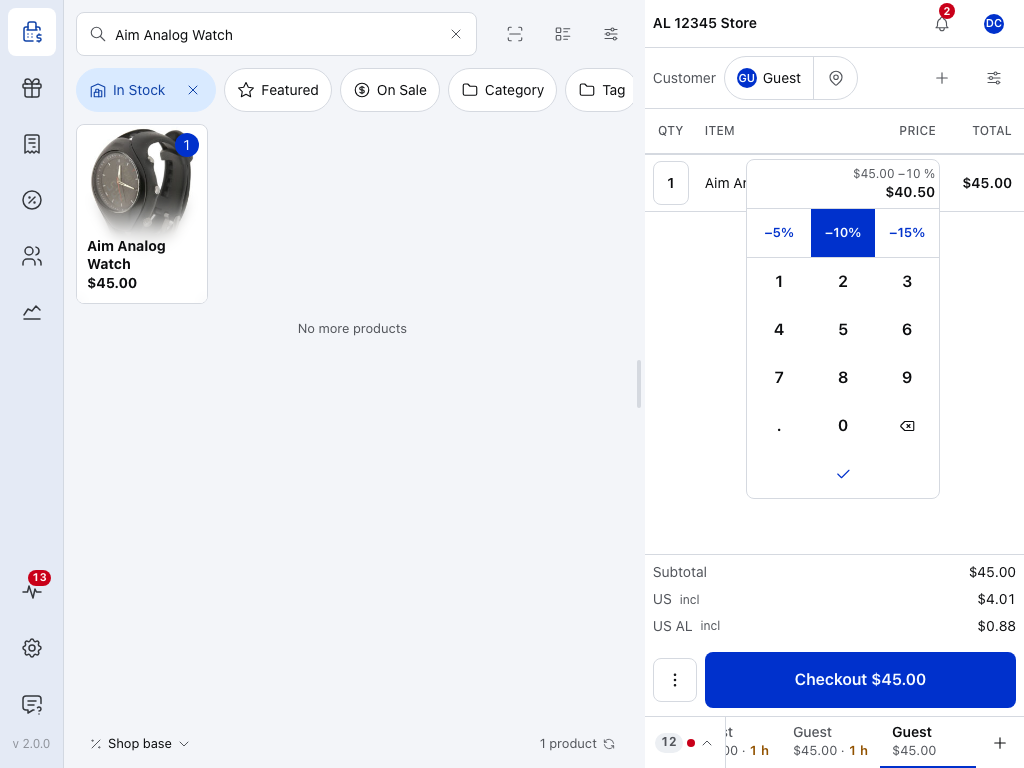
- New price — what the item will cost, and how it was worked out from the price before.
- Percentage keys — each takes its percentage off this line's price. The lit one (here −10%) is in use; press it again to put the old price back. You choose the keys under Quick Discounts in Cart Settings.
- Digits — type a new price instead.
- Delete — removes the last digit.
- ✓ — sets the new price.
If you slip:
- Wrong percentage key — press another before ✓; it replaces the first.
- Want the old price back — before ✓, press the lit key again. After ✓, tap the price again and type the price you want.
- Closing the keypad — tapping outside keeps the price you typed. Escape on a keyboard keeps the old price.
Other fixes: If something goes wrong. More: Take money off one item.
Take money off the whole order
- Press + at the top of the cart and choose Add Discount.
- On Quick discount, type the amount and choose $ or %.
- Press Add Discount.
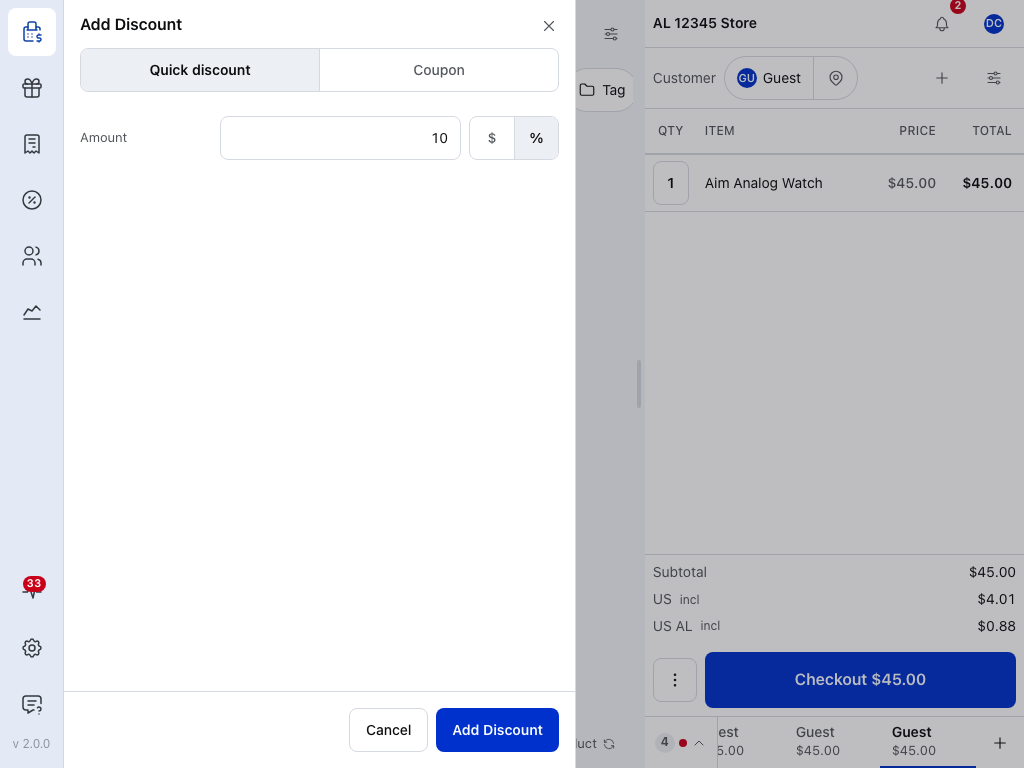
- Quick discount — an amount or a percentage off this whole order, not one line.
- Coupon — one of your store's coupons instead. See Apply a coupon.
- Amount — tap it and type on the keypad.
- $ or % — a fixed amount off, or a percentage of the order.
- Add Discount — puts the discount on the order.
The discount appears with the totals:
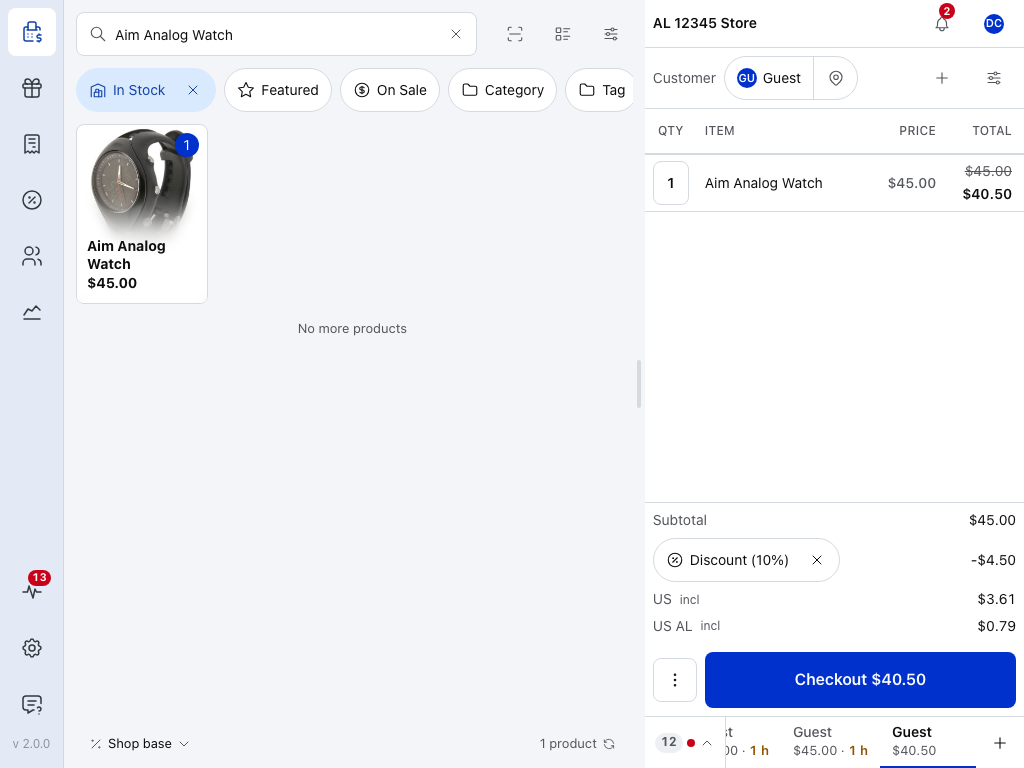
- Line total — the price before the discount, struck through, and what the customer pays now.
- Subtotal — the order before the discount.
- Discount (10%) — the discount and how much it takes off. Discount alone means a fixed amount. Press ✕ to remove it.
- Checkout — the new total.
To undo it, press ✕ on its row. The line totals go back, and prices changed on lines stay as they were set. Other fixes: If something goes wrong. More: Take money off the whole order.
Apply a coupon
- Press + at the top of the cart and choose Add Discount (coupons are in there too).
- Switch to Coupon, press Select coupon, and type part of the code to find it.
- Tap the coupon and press Apply.
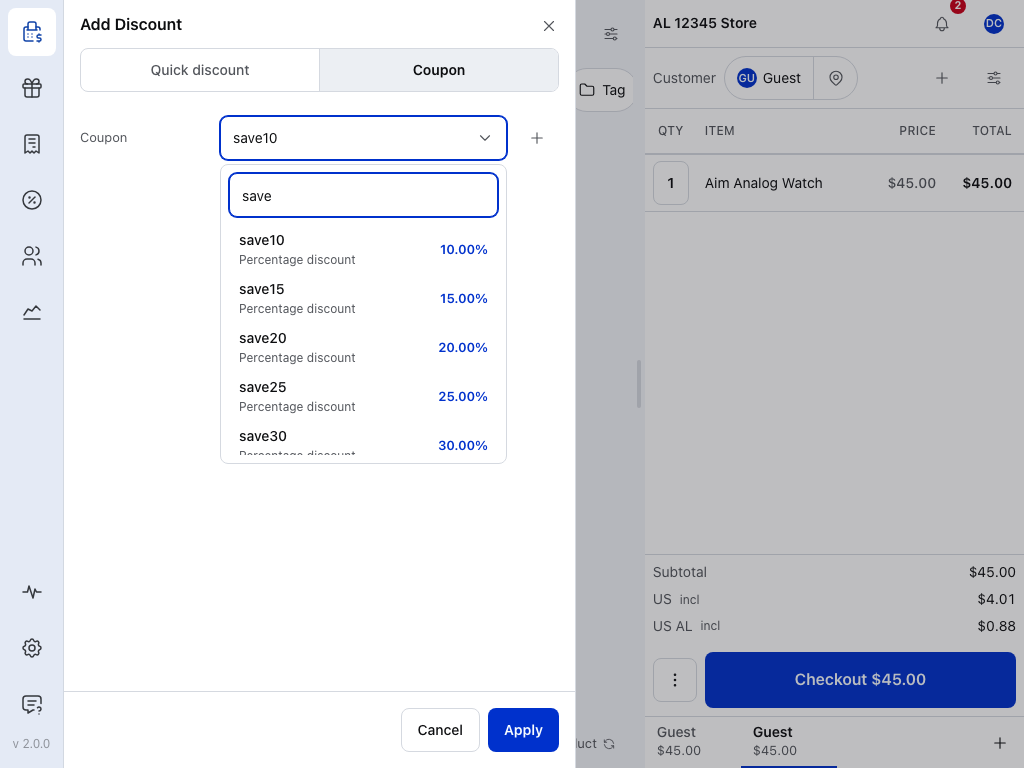
- Quick discount — an amount or a percentage off the order, without a coupon. See Take money off the whole order.
- Coupon — your store's coupons.
- Select coupon — opens the list. Once you pick one, its code shows here.
- Search coupons — type any part of the code or the description.
- A coupon — its code, its description or type, and how much it takes off.
- New coupon (WCPOS Pro) — make a coupon now and apply it to this sale.
- Apply — checks the coupon's rules against this order and puts it on.
The coupon appears in the totals, or the POS says why it can't be used:
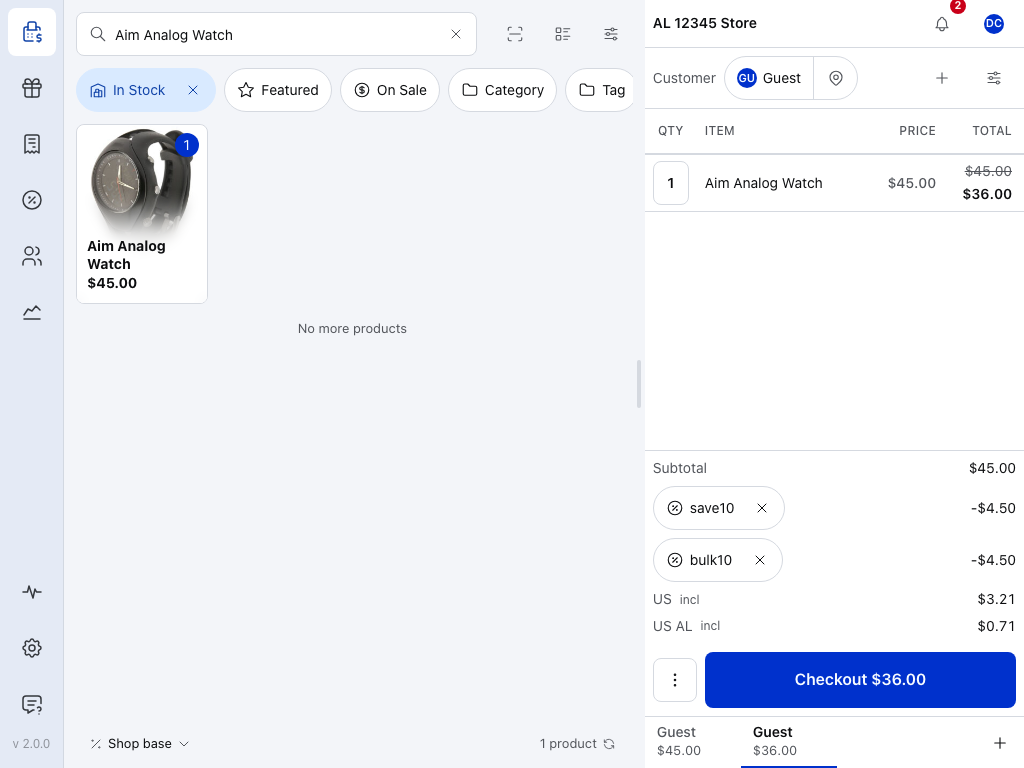
- + — open Add Discount again to add another coupon.
- Subtotal — the order before coupons. The coupon rows sit under it.
- A coupon — its code, the ✕ that removes it, and the amount it takes off.
- The next coupon — each coupon gets its own row, in the order you applied them.
- Checkout — take payment for the order. See Checkout.
Picked the wrong one? Press ✕ on its row; the amount it took off goes back on. Refused? See If the coupon is refused. More: Apply a coupon and Applying Coupons.
If something goes wrong
- Wrong price on a line — tap the price again and type the right one. Before ✓, pressing the lit percentage key again puts the old price back.
- Closed the keypad by mistake — tapping outside keeps the price you typed; Escape keeps the old price.
- Wrong discount on the order — press ✕ on its row under the totals. The line totals go back; prices changed on lines stay.
- Wrong coupon — press ✕ on its row; the amount it took off goes back on.
- The coupon is refused — see If the coupon is refused.
If the coupon is refused
The dialog stays open and says why in red. Two causes come from the other discounts on the order:
- … can't be combined with other coupons or … is already on the order, and it can't be combined with other coupons — a coupon marked Individual use only must go on alone. Remove the coupon in the way, or keep it and skip the new one.
- Exclude sale items — an item whose price was lowered at the till counts as on sale. The coupon skips it, and a coupon for a fixed amount off the order can't be used at all while that item is in the cart. Take that item off, or choose another coupon. Why: what counts as on sale.
Every other message, with what to do: When the till refuses a coupon.
Where each discount is recorded
Nothing below is needed at the till. It is for developers and for anyone reading WCPOS orders in a report, an export or another plugin.
Each way lands in a different place on the order:
- A changed price is the line's price: the
_woocommerce_pos_datameta and the linesubtotal. It is not indiscount_total, and no coupon rule applies to it. - Add Discount is a coupon line with the code
pos-discountand_wcpos_quick_discountmeta. It is indiscount_total. It applies to every product line, sale items included, but can't be combined with a coupon marked Individual use only. - A store coupon is a coupon line with the coupon's code. It is in
discount_total, and the coupon's own rules apply.
Here a $45.00 watch had its price typed as $40.00 at the till, then a 10% Add Discount went on the order:
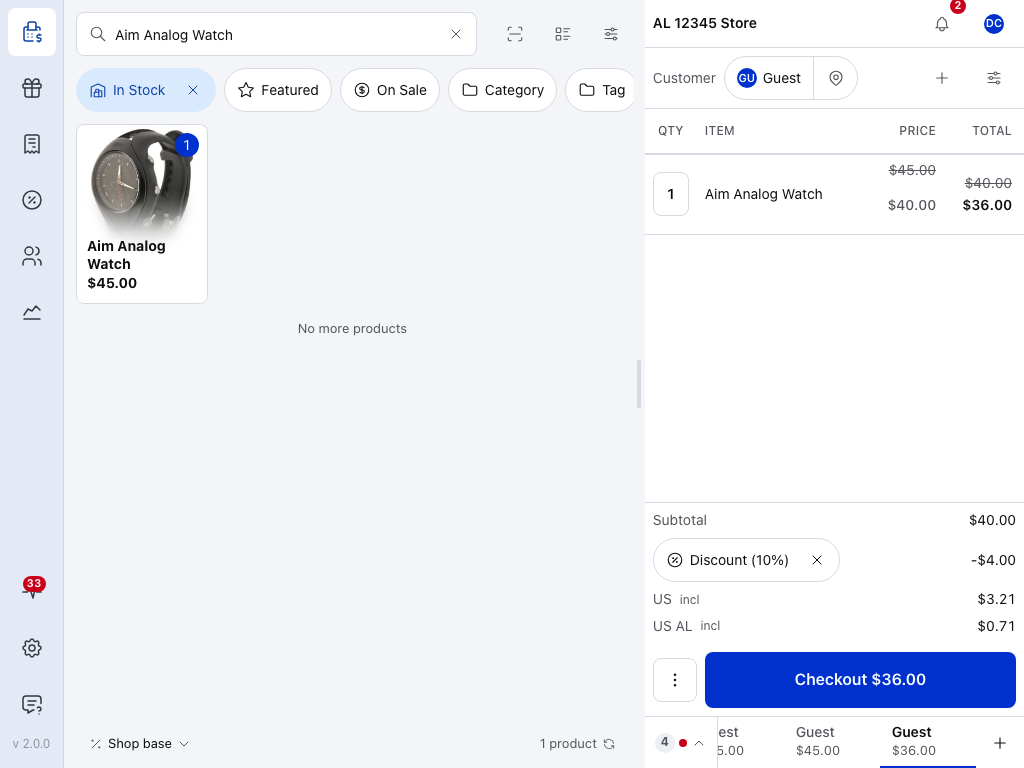
- Price — a price changed at the till. Stored per unit in the line's
_woocommerce_pos_datameta; the line'ssubtotalis this price × quantity. See How POS price overrides are stored. - Line total — the line's
total: itssubtotalless its share of any coupon or Add Discount. - Subtotal — the sum of the line subtotals. It already includes the till price, so the order holds no separate figure for it.
- Discount (10%) — an Add Discount line: a coupon line with the code
pos-discountand_wcpos_quick_discountmeta. It counts in the order'sdiscount_total. See Add Discount lines. - Checkout — the order
total.
In this shot prices include tax: the US and US AL rows under the totals show the tax inside them. The cart shows amounts with tax, while each line's subtotal and total and the order's discount_total hold them with tax taken out. The order total is the grand total, with tax included.
How POS price overrides are stored
Every product line the POS creates carries the per-unit prices in the _woocommerce_pos_data line item meta:
{
  "price": "40.00",
  "regular_price": "45.00",
  "tax_status": "taxable"
}
priceis what the line is sold at, after any change at the till.regular_priceis the product's regular price when it was added. Changing the price at the till never changes it, so a price raised at the till sits above it.- A misc product also carries
virtual,downloadableandcategories, so coupon rules can check them.
This meta is the authoritative per-unit price. The line's subtotal is worked out from price × quantity, with tax taken out and rounding applied, and total drops below it when a coupon or Add Discount applies. For per-unit precision, read price and regular_price from the meta.
The meta is hidden in WooCommerce's order screen.
Reading the meta from code
Use a decoder that takes both shapes. Lines from older apps hold the meta as a JSON string. The 2.0 app writes it as an object, so WordPress stores a serialized array, and values may be numbers rather than strings. A bare json_decode() fails on the array.
New POS orders also carry the private _woocommerce_pos_version order meta: the version of the WCPOS plugin that saved the order. Receipts still treat the stored line shape as authoritative, because an order taken offline may reach a newer plugin than the app that made it.
Line totals and the Discount total
WCPOS records a till price the way WooCommerce records a sale price:
line_item.subtotal=price× quantity, wherepriceis the till price.line_item.total=subtotal− the line's share of coupons and Add Discount.order.discount_total= coupons and Add Discount lines only. A till price is never in it.
A worked example: $45.00 → $40.00 at the till → $36.00
With no tax: a watch with a regular price of $45.00, its price typed as $40.00 at the till, then a 10% Add Discount. $40.00 − $4.00 = $36.00. The order stores it as:
_woocommerce_pos_data.regular_price: 45.00_woocommerce_pos_data.price: 40.00, the till priceline_items[0].subtotal: 40.00, 40.00 × 1line_items[0].total: 36.00, less the Add Discountdiscount_total: 4.00, the Add Discount onlytotal: 36.00
The $5.00 the till price took off shows only by comparing regular_price with price. Receipts do that comparison for you; see Receipt data.
Orders from before v1.9.0
Before v1.9.0 the app sent subtotal = regular_price × quantity. WooCommerce then worked out discount_total = subtotal − total, so a till price counted as a discount. That broke coupon maths: recalculate_coupons() works from subtotal, so coupons were calculated on the original price. A server-side woocommerce_order_item_get_subtotal filter worked around it during recalculate_coupons().
v1.9.0 moved to the sale-price model above and removed the filter. Orders saved before then keep their old figures, which is why a report can show a till price inside discount_total on an old order. Receipts allow for it: see Receipt data.
Add Discount lines
Add Discount takes an amount or a percentage off the whole order. It is a coupon line, not a coupon in your store:
- Code —
pos-discountfor the first on an order, thenpos-discount-2,pos-discount-3and so on. - Meta —
_wcpos_quick_discounton the coupon line:{ "discount_type": "percent", "amount": "10" }.discount_typeispercent(up to 100) orfixed_cart;amountis a positive decimal string. - Rules — it applies to sale items, including prices lowered at the till. It can't be combined with a coupon marked Individual use only.
- Recalculate — WCPOS stores the coupon details on the line, so Recalculate in WooCommerce's order screen keeps the discount.
The virtual coupon exists only while WCPOS saves a POS order: the storefront can't redeem pos-discount. If a store coupon already has a code the request uses, the save is refused with Quick discount code "…" belongs to a store coupon. Use another code.
The 2.0 app no longer takes money off with a negative fee: it asks for Add Discount instead. The plugin still accepts a negative fee line from older apps and other clients.
Coupon Interaction Behaviour
Applying a store coupon at the till works on the free plugin; creating one at the till needs WCPOS Pro. When a coupon is applied to an order that has a till price:
- The coupon works from the till price (
_woocommerce_pos_data.price), notregular_price. - Removing the coupon returns the line to its till price.
The app works coupons out on the device, so it can apply one offline, and the plugin works them out again with the same product context when it saves the order.
Where prices include tax and more than one coupon or Add Discount reaches a line, the app adds up that line's discounts first and takes the tax out once, as WooCommerce does. The till's line totals then match the saved order to the last decimal.
exclude_sale_items Behaviour
A line whose _woocommerce_pos_data.price is below its regular_price counts as on sale, the same as a WooCommerce sale price. A till price at or above regular_price doesn't. So a coupon with Exclude sale items:
- skips a line whose till price is below its
regular_price; - can't be used at all while one is in the cart, if it is a fixed cart coupon. This is WooCommerce's own rule for fixed cart coupons.
To change what counts as on sale, use the wcpos_item_is_on_sale filter below.
Available Filters
wcpos_item_is_on_sale
Override whether a line with POS price data counts as "on sale" when the plugin validates coupons. Before WCPOS 2.0 this filter was named woocommerce_pos_item_is_on_sale; that name still works but is deprecated since 2.0 and is removed in 2.2 at the earliest (see Hook naming).
Example and parameters
add_filter( 'wcpos_item_is_on_sale', function ( $is_on_sale, $product, $item, $pos_data ) {
    // Let coupons with exclude_sale_items apply to lines lowered at the till.
    return false;
}, 10, 4 );
$is_on_sale(bool) — whether the line counts as on sale. Default:price < regular_price.$product(WC_Product) — the product object.$item(WC_Order_Item_Product) — the order line item.$pos_data(array) — the decoded_woocommerce_pos_data.
The filter runs on the server. The app's own on-sale check, used while the cashier is still building the cart, is always price < regular_price; the server's answer applies when the order is saved.
REST API Endpoint
Coupon endpoints live in the free plugin, so the app never gets a 404 when it asks for coupons, even without WCPOS Pro.
The 2.0 app syncs coupons through GET /wp-json/wcpos/v2/coupons, which forwards to WooCommerce's wc/v3/coupons with the POS read permission. A coupon made at the till (Pro) is saved as an ordinary WooCommerce coupon, and the cashier needs permission to create coupons.
The v1 endpoint, for apps before 2.0
Apps before 2.0 use /wp-json/wcpos/v1/coupons. Its controller extends WC_REST_Coupons_Controller and adds UUIDs for offline sync, read access for any user with the access_woocommerce_pos capability, and a fast ID-only path when posts_per_page=-1 and fields=id (or fields=id,date_modified_gmt) are requested.
For who can reach which endpoint, see Role and Endpoint Access.
Receipt Data Exposure
Receipt templates get the savings without reading _woocommerce_pos_data themselves: each line's savings, one row per coupon or Add Discount, and order totals for both.
The receipt fields for discounts and savings
- Each line —
regular_price,unit_savingsandline_savingsgive what a till price or a sale price saved.discountsis the line'ssubtotal−total: its share of coupons and Add Discount, never a till price. The exception is an order from before v1.9.0, where it may already include the saving:savings_in_discountsis then true. discounts[]— one row per coupon line, Add Discount included, withlabel,code,discount_typeandtotal. An Add Discount row is labelled Discount (10%), or Discount for a fixed amount, withcodepos-discountanddiscount_typepercentorfixed_cart.- Totals —
discount_total(coupons and Add Discount, fromWC_Order::get_discount_total()),sale_savings_total(regular-to-selling-price savings, till prices included), andtotal_savedfor one figure.total_savedremoves the overlap on orders from before v1.9.0. total_saved_complete— false when a line lacks the price data for a reliable sum; the savings totals are thennull.
Each has _incl and _excl variants. Receipt_Data_Builder::get_item_meta_pairs() leaves every underscore-prefixed meta key, _woocommerce_pos_data included, out of lines[].meta.
See Displaying regular price and savings and Totals for template examples.