Barcode Settings
Configure how the POS detects and processes barcode scanner input.
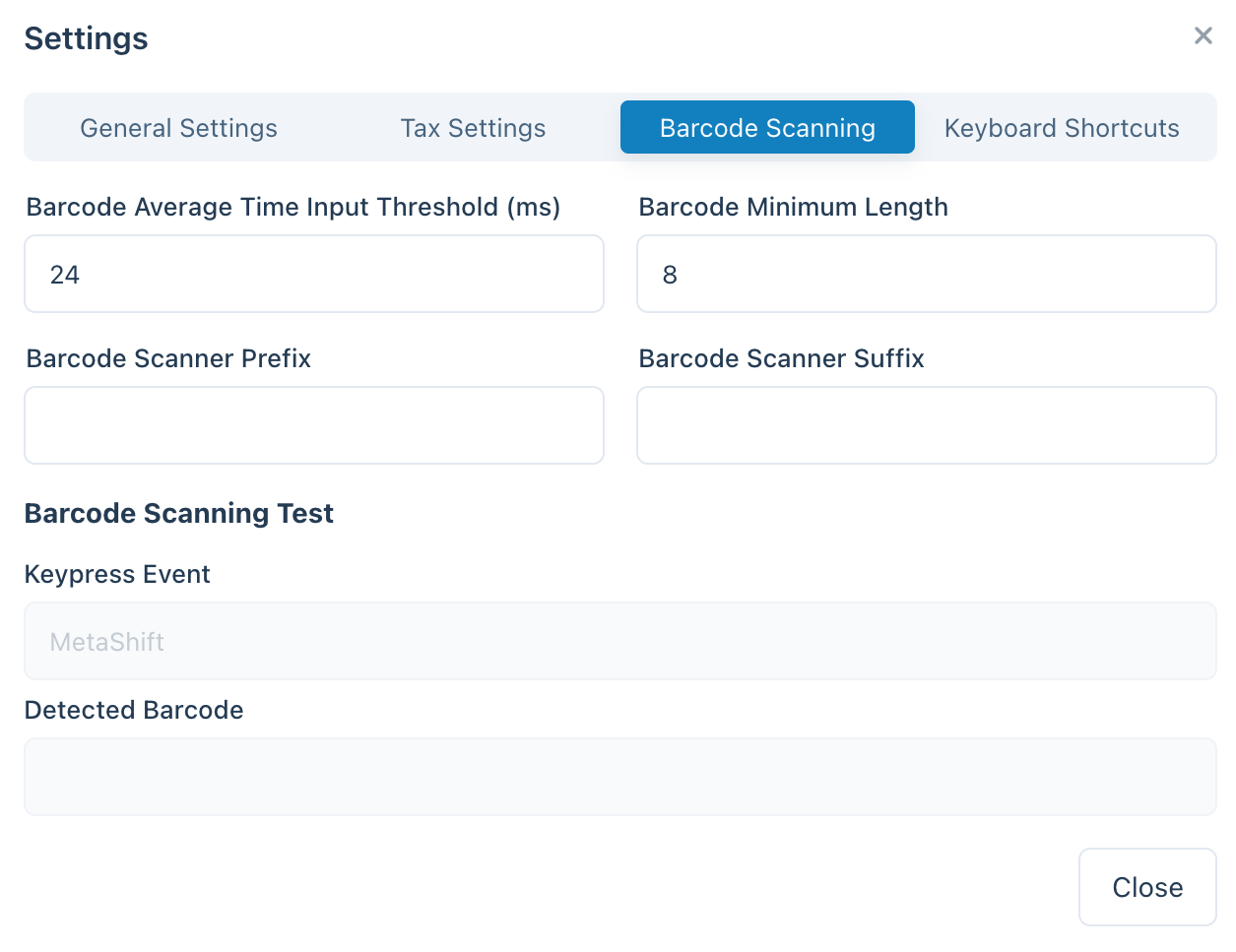
Barcode Scanning Settings
How Barcode Detection Works
Most barcode scanners behave like a keyboard connected to your device. When you scan a barcode, the POS detects that the characters were entered faster than normal typing. It uses these "fast key presses" to identify the input as a barcode scan.
Settings
| Setting | Description |
|---|---|
| Average input time | How fast the input should be (in milliseconds) to count as a barcode. Lower values = faster input required |
| Minimum length | How long the continuous string of characters must be to be treated as a barcode |
| Prefix removal | Characters to remove from the beginning of scanned barcodes |
| Suffix removal | Characters to remove from the end of scanned barcodes |
| Scan sound | Play an optional sound on each scan so cashiers get instant confirmation without looking at the screen. Off by default; choose from several sound themes when enabled |
Prefix/Suffix Removal
If your scanner adds extra characters (like a prefix or suffix), you can remove them automatically so only the main barcode remains.
Example: If your scanner adds "A" before every barcode and "Z" after, configure:
- Prefix removal:
A - Suffix removal:
Z
Test Your Scanner
Below the settings is a Barcode Scanning Test panel — the quickest way to calibrate your scanner and confirm your prefix/suffix/length settings are right:
- Keypress Event — shows the raw characters as your scanner sends them, so you can see any prefix or suffix your scanner adds.
- Detected Barcode — shows the final value WCPOS detected after applying your settings.
Scan a known barcode and compare the two fields. If Detected Barcode stays empty, the scan isn't being recognised — adjust Average input time or Minimum length and try again. If it shows extra characters, set the matching Prefix removal / Suffix removal.
Troubleshooting
Barcode not detected
- Scanner too slow: Try increasing the "Average input time" value
- Barcode too short: Try decreasing the "Minimum length" value
- Extra characters: Check if your scanner is adding prefixes/suffixes
Regular typing detected as barcode
- Typing too fast: Try decreasing the "Average input time" value
- Input too long: Try increasing the "Minimum length" value