General Settings
The General Store Settings control the fundamental configuration of your POS store, including store information, localisation, currency formatting, and customer defaults.
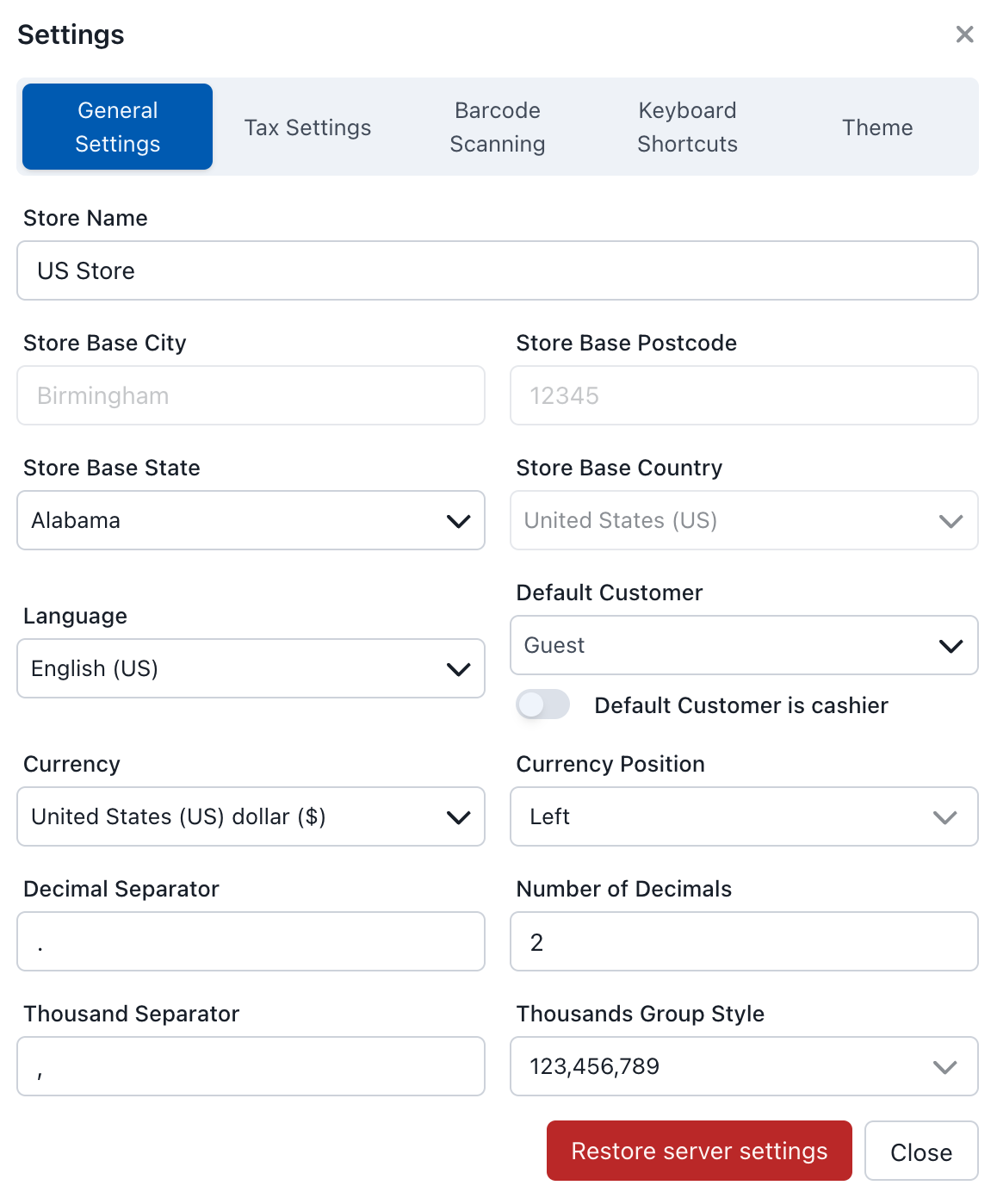
General Store Settings
Overview
On initial load, the POS automatically retrieves default settings from your WooCommerce store configuration. In most cases, you'll want to keep these settings synchronized with your WooCommerce store to maintain consistency across all sales channels.
Generally, users should maintain the same settings as their WooCommerce store unless there's a specific business need to customise them for the POS, such as switching currencies for a different market or setting a different default customer for in-store transactions.
Store Information
Store Name
The name of your store as it appears throughout the POS interface and on receipts. This is typically synchronized with your WooCommerce store name.
Store Address
The store address fields include:
- Store Base City: The city where your store is located
- Store Base Postcode: The postal/ZIP code for your store location
- Store Base State: The state or province where your store operates
- Store Base Country: The country where your store is located
The store address fields are currently disabled in the POS settings because changes to the store address can impact tax calculations and may cause problems with order processing. These settings remain synchronized with your WooCommerce store configuration.
Localisation Settings
Language
Sets the display language for the POS interface. This controls the language used for:
- Menu items and navigation
- Button labels and interface text
- System messages and notifications
- Date and time formatting
Currency
Defines the primary currency used for transactions and pricing display. This setting affects:
- Product pricing display
- Order totals and calculations
- Receipt formatting
- Financial reporting
Currency Position
Controls where the currency symbol appears relative to the price amount:
- Left: $10.00 (symbol before amount)
- Right: 10.00$ (symbol after amount)
- Left with space: $ 10.00
- Right with space: 10.00 $
Number Formatting
Decimal Separator
The character used to separate the whole number from the decimal portion (e.g., "." or ",").
Number of Decimals
Specifies how many decimal places to display for prices and monetary values (typically 2 for most currencies).
Thousand Separator
The character used to separate thousands in large numbers (e.g., "," for 1,000 or "." for 1.000).
Thousands Group Style
Determines how thousands are grouped and displayed:
- thousand: Standard Western grouping (123,456,789) - groups every 3 digits
- lakh: Indian numbering system (12,34,56,789) - groups first 3 digits, then every 2 digits
- wan: East Asian numbering system (1,2345,6789) - groups every 4 digits
Customer Settings
Default Customer
Sets the customer that is automatically selected for new orders. Options typically include:
- Guest: For walk-in customers without accounts
- Specific Customer: A predefined customer account
- Cashier: The logged-in cashier as the customer
Default Customer is Cashier
When enabled, the currently logged-in cashier is automatically set as the customer for new orders.
Restore Server Settings
The "Restore server settings" button allows you to reset all general settings back to the default values from your WooCommerce store.
Clicking "Restore server settings" will fetch the current WooCommerce store defaults and override any custom POS settings.