Tax Settings
The Tax Settings control how taxes are calculated and displayed within the POS application.
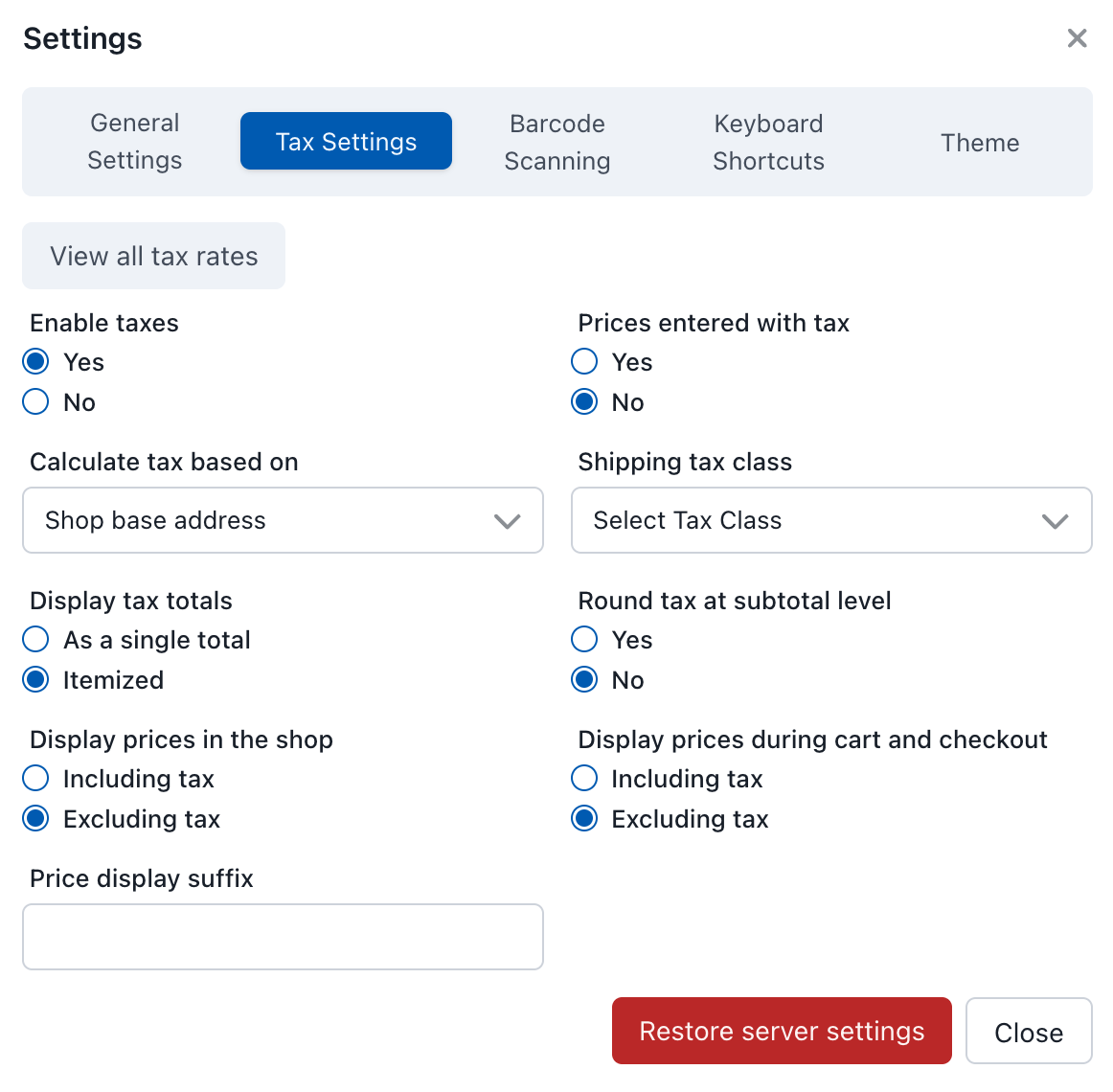
Tax Settings
On initial load, the POS will get the default tax settings from WooCommerce. In general, users should keep the same settings as WooCommerce unless they have a specific need. Having different tax settings than the server will almost certainly cause the POS and WooCommerce to calculate different tax values, which can lead to discrepancies and problems with order synchronization. The one exception is Calculate Tax Based On, which WCPOS 1.x does not copy from WooCommerce.
View All Tax Rates
Click the View all tax rates button to see all tax rates that have been downloaded to the POS. This shows:
- Tax rate names
- Tax rate percentages
- Applicable regions/locations
This is useful for verifying that the correct tax rates are loaded and for debugging tax calculation issues.
Tax Calculation Settings
Prices Entered With Tax
Determines whether product prices include tax:
| Option | Description |
|---|---|
| Yes | Product prices include tax. The POS calculates tax by working backwards from the total price |
| No | Product prices do not include tax. The POS adds tax on top of the entered price |
Stores using WooCommerce Tax with automated taxes on are locked to No by WooCommerce, and the POS should mirror that.
Calculate Tax Based On
Determines the address used for tax calculation:
| Option | Description |
|---|---|
| Customer shipping address | Tax rates based on where the order will be shipped |
| Customer billing address | Tax rates based on the customer's billing address |
| Shop base address | Tax rates based on your store's physical location |
In WCPOS 1.x, including every 1.11 release, this setting is not copied from WooCommerce. The POS starts on Shop base address whatever WooCommerce's own Calculate tax based on option says, and Restore Server Settings sets it back to Shop base address. Changing the option in WP Admin > WooCommerce > Settings > Tax does not change it in the POS.
To tax POS sales on the customer's address instead:
- In the POS, open Settings > Tax.
- Set Calculate Tax Based On to Customer shipping address or Customer billing address.
- Repeat on each till. The POS does not share this choice between devices.
The POS saves the choice on each order, and WooCommerce calculates that order's tax from the same address, so the till and your store agree. After Restore Server Settings, set it again.
With WCPOS Pro, Shop base address means the address chosen in the store's own Calculate Tax Based On setting: the store's address (the default) or your WooCommerce base location. See Setting Up Stores.
Stores using WooCommerce Tax with automated taxes on are locked to the customer shipping address by WooCommerce. A different choice here still applies to POS orders, on both the POS and your store.
Shipping Tax Class
Determines how shipping costs are taxed:
| Option | Description |
|---|---|
| Shipping tax class based on cart items | Shipping tax is calculated based on the tax class of items in the cart |
| Standard | Shipping is taxed at the standard tax rate |
| Reduced rate | Shipping is taxed at a reduced tax rate |
| Zero rate | No tax is applied to shipping costs |
Rounding
| Option | Description |
|---|---|
| Round tax at subtotal level | Tax is calculated for the entire subtotal and then rounded, rather than rounding tax for each individual line item |
WCPOS follows WooCommerce's own tax maths so an order totals the same whether it's rung up at the till or placed on your website:
- Full precision — line and order totals are held at full precision and only rounded for display, so the amount saved to the order is the exact figure WooCommerce expects rather than a value pre-rounded to the display decimals.
- Store rounding — rounding uses your currency's cents precision and honours the Round tax at subtotal level setting above.
- Compound taxes — when a rate is marked compound, rates are applied in WooCommerce's priority order (
tax_rate_priority), so a tax that stacks on top of another is calculated after it.
Display Settings
Display Prices in the Shop
| Option | Description |
|---|---|
| Including tax | Prices shown include tax amounts |
| Excluding tax | Prices shown do not include tax |
Display Prices During Cart and Checkout
| Option | Description |
|---|---|
| Including tax | Cart and checkout prices include tax |
| Excluding tax | Cart and checkout prices exclude tax |
Price Display Suffix
Text that appears after prices to indicate tax status (e.g., "inc. VAT" or "ex. VAT").
Display Tax Totals
| Option | Description |
|---|---|
| As a single total | All taxes are combined into one total line |
| Itemized | Each tax rate is shown as a separate line item |
Restore Server Settings
Click to fetch and apply the current WooCommerce tax settings from your server. In WCPOS 1.x this also sets Calculate Tax Based On back to Shop base address (see above).
WooCommerce is the source of truth for tax settings — the POS should mirror it. Restore Server Settings is the safe way to pull the latest configuration from your store, and is the right action whenever you've changed tax settings in WP Admin > WooCommerce > Settings > Tax and want the POS to pick them up.
The only time to think twice: if you've deliberately changed a POS-side tax setting, such as Calculate Tax Based On set to a customer address, Restore Server Settings will overwrite it. Set it again afterwards.
Common Issues
POS and WooCommerce Showing Different Totals
The most frequent tax problem is a mismatch between POS tax settings and WooCommerce tax settings. When these diverge, the same order will calculate different totals depending on where it's placed. Always keep POS settings in sync — use Restore Server Settings after changing anything in WP Admin > WooCommerce > Settings > Tax.
Stores using WooCommerce Tax have one more cause to rule out: the first sale at a location your store has never taxed. See WooCommerce Tax.
Tax-Inclusive Pricing Confusion
If "Prices Entered With Tax" is set to Yes but "Display Prices in the Shop" is set to Excluding tax, the displayed price will be lower than the entered price. This is correct behaviour — the POS is stripping the tax component for display — but it can surprise cashiers if they're expecting to see the sticker price.
Customer Address and Tax Calculation
When "Calculate Tax Based On" is set to Customer shipping address or Customer billing address, the POS needs a valid address to look up the correct rate. If a walk-in customer has no address on file, WCPOS falls back to the shop base address for calculation. This is usually the right behaviour for in-store sales, but if you see unexpected rates for specific customers, check their address details.
Troubleshooting
Tax Amounts Are Incorrect
- Go to Tax Settings in the POS and click Restore Server Settings to pull the latest configuration from WooCommerce.
- Click View all tax rates and confirm the expected rates appear. If rates are missing, check that they're properly configured in
WP Admin > WooCommerce > Settings > Tax > Standard rates. With WooCommerce Tax automated taxes on, do not add rows by hand: a location's rows appear on the first sale there, and the POS picks them up on its next change check, or straight away with Clear & re-download on the Tax rates row in Store health. - Verify the product's tax class — products assigned to a "Zero rate" tax class won't have tax applied regardless of settings.
Tax Is Showing as Zero
- Check that tax is enabled in WooCommerce (
WP Admin > WooCommerce > Settings > General > Enable tax rates and calculations). - Use View all tax rates in the POS to confirm rates have been downloaded. If the list is empty, try a full sync.
- Confirm the product's tax status is set to "Taxable" (not "None" or "Shipping only").
Rounding Discrepancies
Small rounding differences (a penny or two) between POS and WooCommerce can occur when "Round tax at subtotal level" is enabled in one system but not the other. Ensure this setting matches in both places.