العملاء
تتطلب شاشة العملاء WCPOS Pro. يمكن لمستخدمي الإصدار المجاني اختيار عملاء حاليين للطلبات، لكن لا يمكنهم عرض قائمة العملاء الكاملة أو تعديل تفاصيل العملاء.
توفر شاشة العملاء إدارة شاملة للعملاء مباشرة داخل POS. يمكن عرض العملاء وتعديلهم وإنشاؤهم دون الانتقال إلى إدارة WooCommerce.
نظرة عامة على الواجهة
إجراءات الرأس
في أعلى الشاشة:
- شريط البحث - ابحث عن العملاء بالاسم أو البريد الإلكتروني أو غير ذلك.
- إضافة عميل () - إنشاء عميل جديد
- إعدادات العرض () - تكوين الأعمدة المرئية
جدول العملاء
تعرض المنطقة الرئيسية العملاء مع:
- الصورة الرمزية - صورة ملف العميل الشخصي (أو عنصر نائب)
- الاسم الأول - الاسم الأول للعميل
- اسم العائلة - اسم عائلة العميل (قابل للفرز)
- البريد الإلكتروني - عنوان البريد الإلكتروني للتواصل
- عنوان الفوترة - عنوان الفوترة الكامل
- تاريخ الإنشاء - وقت إضافة العميل
- الإجراءات - قائمة النقاط الثلاث
التذييل
- عدد العملاء مع زر المزامنة (). الضغط المطوّل لخيار المسح والتحديث
الميزات الرئيسية
البحث عن العملاء
يمكن العثور على العملاء بسرعة حسب:
- الاسم الأول أو اسم العائلة
- عنوان البريد الإلكتروني
- معلومات العنوان
يطابق البحث كل كلمة تكتبها، بأي ترتيب وعبر تلك الحقول — لذا يعثر "jane paris" على Jane التي مدينتها Paris. يُجرى الفرز والتصفية على الخادم، ويشملان جميع عملائك لا العملاء الموجودين على الجهاز فقط.
إضافة عميل جديد
يمكن إنشاء العملاء مباشرة من POS:
- انقر على الأيقونة في الشريط العلوي
- املأ تفاصيل العميل
- احفظ العميل الجديد
يتم إنشاء العميل في WooCommerce ويصبح متاحًا فورًا للطلبات.
تحرير العميل
حدّث معلومات العميل:
- انقر على قائمة النقاط الثلاث لدى العميل
- حدد تحرير
- عدّل التفاصيل (الاسم، البريد الإلكتروني، العناوين)
- احفظ التغييرات
تتم مزامنة التغييرات مع WooCommerce تلقائيًا.
إعدادات العرض
انقر على أيقونة أشرطة التمرير () لتخصيص الأعمدة المرئية.
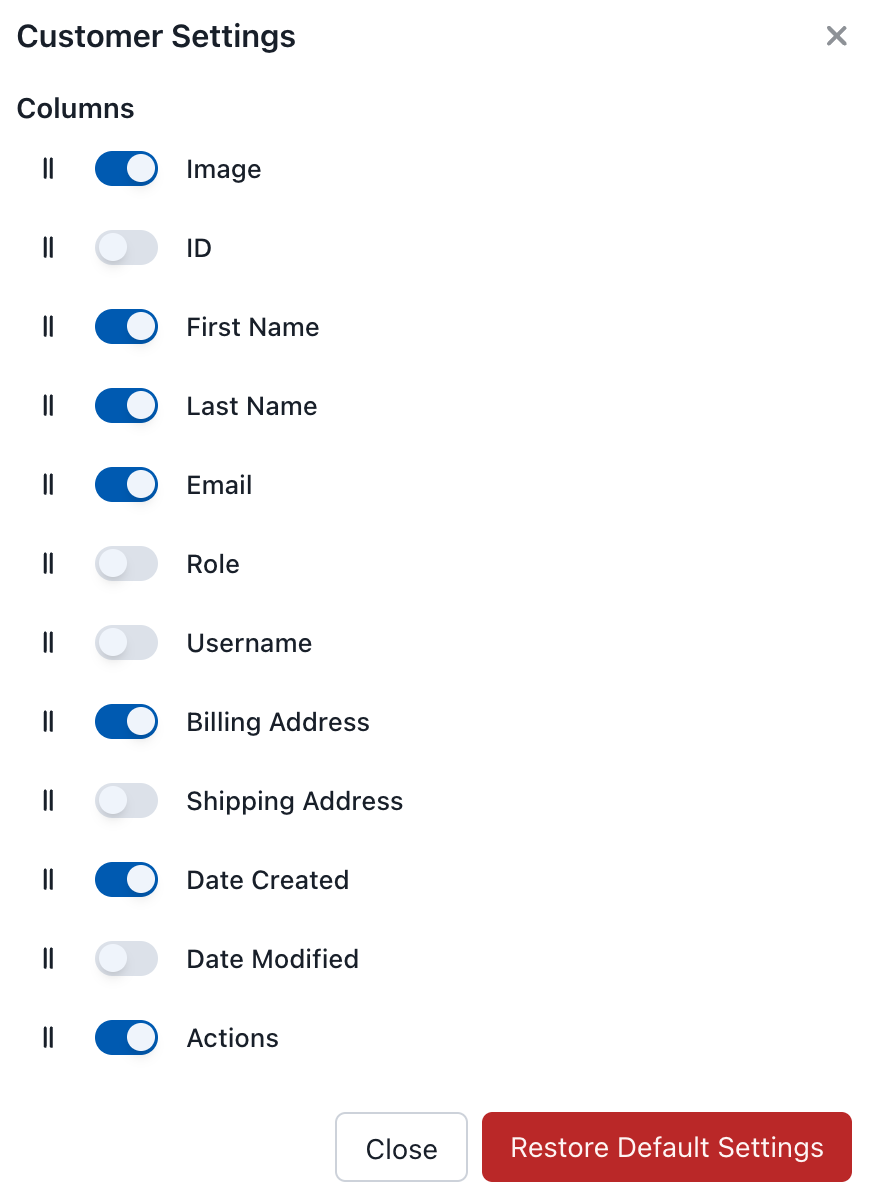
إعدادات عرض العملاء
الأعمدة المتاحة
| العمود | الوصف |
|---|---|
| الصورة | الصورة الرمزية للعميل |
| ID | ID عميل WooCommerce |
| الاسم الأول | الاسم الأول للعميل |
| اسم العائلة | اسم عائلة العميل |
| البريد الإلكتروني | عنوان البريد الإلكتروني |
| الدور | دور المستخدم (عميل، مشترك، إلخ.) |
| اسم المستخدم | اسم مستخدم WordPress |
| عنوان الفوترة | معلومات الفوترة |
| عنوان الشحن | معلومات الشحن |
| تاريخ الإنشاء | وقت إضافة العميل |
| تاريخ التعديل | آخر تحديث |
| الإجراءات | تعديل، مزامنة، حذف |
إجراءات العميل
انقر على قائمة النقاط الثلاث (⋮) للخيارات:
- تعديل - تعديل تفاصيل العميل
- مزامنة - تحديث بيانات العميل من الخادم
- حذف - إزالة من قاعدة البيانات المحلية
لا يؤدي حذف عميل من POS إلا إلى إزالته محليًا — إذ يظل العميل موجودًا في WooCommerce ويعود عند المزامنة التالية. وإذا حُذف العميل من WooCommerce، تزيله المزامنة من POS أيضًا.
العميل الافتراضي (ضيف)
عند عدم تحديد عميل، تُسجَّل الطلبات كطلبات ضيف. طلبات الضيف:
- لا يكون مرفقًا بها اسم عميل أو بريد إلكتروني أو عنوان
- لا يمكن البحث عنها حسب العميل في سجل الطلبات
- تظل مرئية في شاشة الطلبات وإدارة WooCommerce
لتجنب طلبات الضيف، حدِّد عميلاً من لوحة السلة قبل إتمام الدفع. إذا كان نشاطك يتطلب وجود عميل في كل طلب، ففكِّر في تدريب أمناء الصندوق على تعيين عميل دائمًا — لا يوجد إعداد مدمج لفرض ذلك.
استخدام العملاء في الطلبات
لتعيين عميل لطلب:
- في لوحة السلة، انقر على شارة العميل
- ابحث عن العميل بالاسم أو البريد الإلكتروني أو رقم الهاتف
- حدد العميل
- أصبح العميل الآن مرتبطًا بالطلب
تُستخدم معلومات العميل (عناوين الفوترة/الشحن) تلقائيًا للطلب.
المزامنة
تتم مزامنة بيانات العملاء بين POS وWooCommerce:
- مزامنة عبر الأجهزة - تظهر التغييرات على الأجهزة الأخرى عند فحص التغييرات التالي لديها
- تكامل WooCommerce - يتم تخزين العملاء في WooCommerce
- إمكانية العمل دون اتصال - اعرض العملاء حتى عند عدم الاتصال بالإنترنت