The Payment Screen
The payment screen opens when you press Checkout in the cart. These docs also call it the tender pane. It holds everything you need to take payment for the order: what is due, how the customer is paying, and how much they hand over. Checkout walks through a whole sale. Using a phone? See On a phone.
The payment screen
Here the customer owes $45.00 and hands over a $50 note: choose Cash, type 5000 for $50.00, press Take $45.00 in Cash, and give back the $5.00 change.
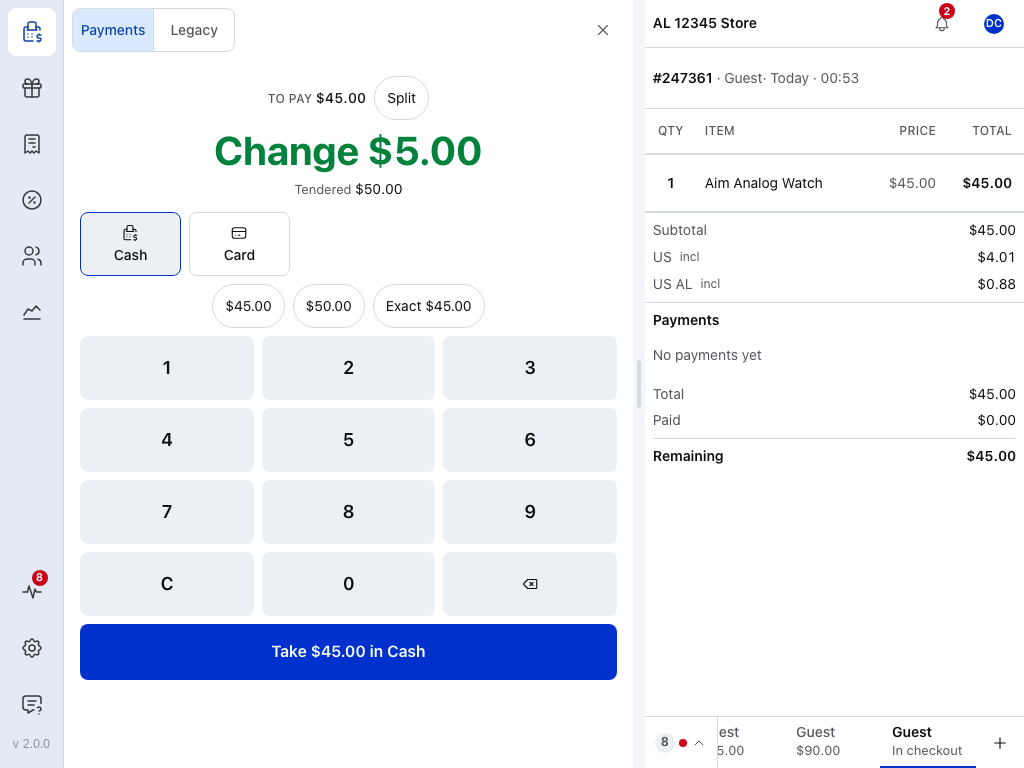
- Payments tab — the payment method tiles, the keypad and the payments taken so far.
- Legacy tab — your store's own payment page, for payment methods that have no tile. See The Legacy Tab.
- To pay — the balance due. After a payment it reads Payment 2 · $25.00 left.
- Split — turns on splitting, to divide the order into several payments. See Split Payments.
- Change — the change to give back, in large type at the top, in place of the amount.
- Tendered — what the customer handed over. Take records no more than is due. See Type the amount.
- Payment method tiles — the ways your store takes payment at the till. The selected tile is outlined. For Card, take the payment on your own terminal first; Take only records it. See Choose a payment method.
- Quick amounts — the balance, the balance rounded up to the next $5, $10 and $50, and Exact. A card gets Full balance instead.
- Keypad — enter the cash handed over, or the amount to pay by another method.
- Take — names the amount and the method, and records the payment. See Taking a Payment.
- The order — its lines, the taxes, the payments taken, and the total.
- ✕ — closes the payment screen. See Close the payment screen.
When the customer hands over more cash than is due, the change moves to the top in large type, with Tendered and what they handed over under it. Take records only the amount due. Here it records $45.00, and the $5.00 over it is the change.
When nothing is left to pay, the sale is done and the receipt is ready; see See it paid.
Type the amount
The amount starts at the balance. The first key you press starts a new number, and each digit comes in from the right, so 5, 0, 0, 0 makes $50.00. There is no decimal point key.
- C clears the amount.
- ⌫ deletes the last digit.
- A quick amount fills the amount in one tap. It does not take the payment; you still press Take.
Type less than the balance to take part of it now: with $20.00 typed, the button reads Take $20.00 in Cash · $25.00 left.
The line under the amount
A short line under the amount says what this payment will do, such as what is left after it. When there is change to give, the change takes the amount's place at the top, and Tendered and what the customer handed over sit on this line.
What each message means
| It says | What it means |
|---|---|
| Change $5.00, in large type | The customer handed over more cash than is due. Give back this much. Tendered under it shows what they handed over. |
| Part payment · $25.00 left after this | This payment is less than the balance. The rest stays to pay. |
| Only $45.00 is due — Card can't give change | The amount is more than the balance, on a method that gives no change. Take stays greyed out until you lower the amount or tap Full balance. |
| Rounded from $45.03 | Cash rounding is on, and the cash due is rounded. See Cash rounding. |
| Enter and the name of a detail | The payment method needs that detail before it can take the payment. |
| Less than planned and other split lines | With Split on, the line tracks each share. See Split Payments. |
Why Take is greyed out
- No payment method is chosen. Tap a tile.
- The amount is zero. Type an amount or tap a quick amount.
- The amount is more than is due, on a method that can't give change. The line says Only $45.00 is due — Card can't give change. Lower the amount or tap Full balance.
- The line says Enter and the name of a detail. Fill in that detail.
- A card reader shows Choose a terminal. Pick a terminal that is free.
- The method can't be used right now. See Why a payment method is unavailable.
- The last payment is still saving. Wait for it to finish.
Choose a payment method
Each tile on the Payments tab of checkout is a payment method your store has turned on for the POS. Cash and Card come with the plugin. The tiles follow the order set in Checkout settings.
With Open and close the register switched on, the till won't record a payment while the register is closed, and a card you've already taken would have to be refunded. See Open the Register.
- Tap the tile for how the customer is paying.
- Enter the amount: for Cash, what the customer hands over; for Card, what you charged on your terminal, no more than the balance. The amount starts at the balance, and the keypad types in cents, so 1, 0, 0 is $1.00.
- Press Take. If nothing is left to pay, the sale completes and the paid screen opens; with Automatically show receipt after checkout off, a message names the order instead. Otherwise choose a method for what is left and take the rest.
The first screenshot shows a cash sale ready to take.
When the pane opens, the method you last picked for this order is selected, or else the first one that can be used. If you picked a method for this sale and switched to another open order, it's still selected when you come back. Tap another tile to change it.
- Cash and cash on delivery give change, so they get the quick amounts and the Change line.
- Card, and the other methods you record at the till, can't give change. They get Full balance instead of the quick amounts. On your own card terminal, take the card payment first, then record it here: Take does not charge the card.
- A card reader (WCPOS Pro) has its own tile, and Send instead of Take. See On a Card Reader.
Using a card reader
A reader's tile shows a green dot when the reader is connected, and its battery on the selected tile. When the readers are set up on your store, the pane shows Terminal: and the reader in use, with Change when there's more than one.
The Legacy tab
The Legacy tab, next to Payments, is your store's own payment page inside the POS. It offers Card on every store, plus any payment method that has no tile; those other methods need WCPOS Pro. Cash isn't on it: use the Cash tile. Once a payment is taken, Whole bill only shows next to the tabs, because a Legacy method charges the whole order. See The Legacy Tab.
Payment methods you can't use right now appear in a line below the tiles, such as Card is not available right now or 2 not available right now. Tap the line to see why.
Why a payment method is unavailable
- It needs a connection, and the device is offline. See Needs a Connection.
- It works only with the card readers of the iOS and Android apps, and this till is a browser or the desktop app. The line says Only the app's readers are allowed for this payment method and names the setting to change: allow smart readers on the payment method's WooCommerce settings page.
- The app needs an update to use it.
- The payment method has no terminals set up.
- Its reader is in use on another order.
- It takes the whole order, and a payment has already been taken.
More in Unavailable tiles.
Methods that can't give change
Methods that don't give change, including Card, take no more than the balance. Enter more and the POS says so and won't take it.
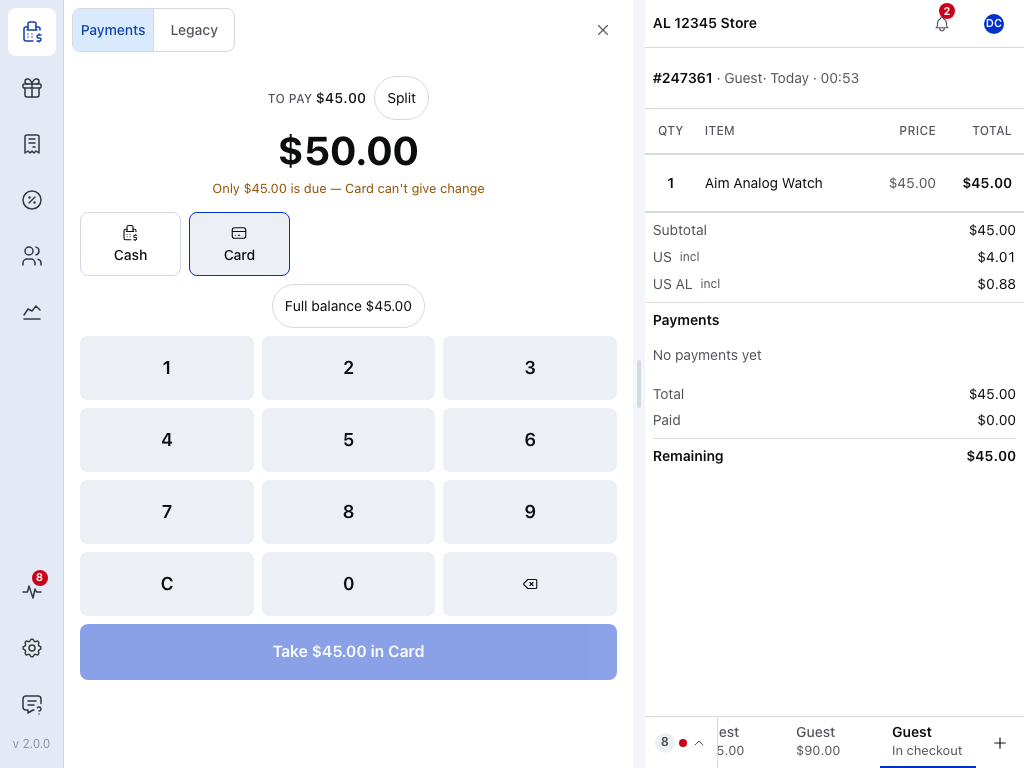
- Card — selected.
- Amount — $50.00, more than the $45.00 due.
- Only $45.00 is due — Card can't give change — enter the balance or less.
- Full balance $45.00 — puts the balance back in the amount.
- Take $45.00 in Card — greyed out until the amount fits.
Paying part of the balance
- Enter less than the balance. The line under the amount reads Part payment · $25.00 left after this, and the button says what will be left, such as Take $20.00 in Cash · $25.00 left. Press Take.
- Tap the tile for the rest.
- Press Take. When the button ends in · pays it off, this payment clears the order.
Here $20.00 has been taken in cash, and $25.00 is left.
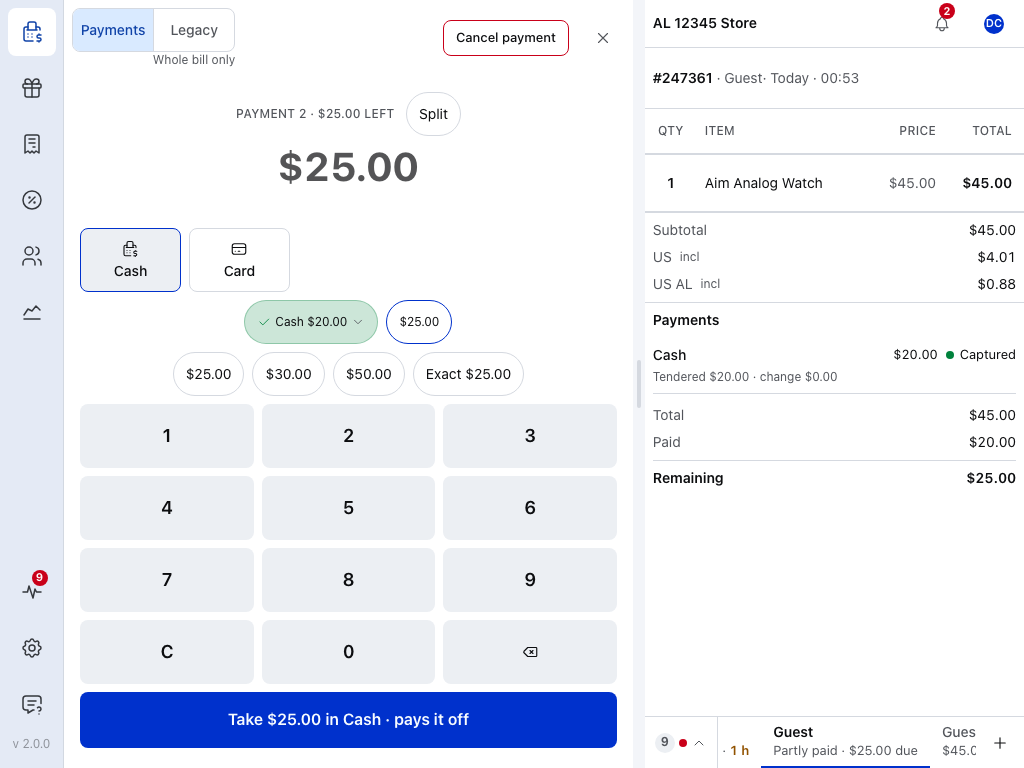
- Cancel payment — appears once a payment has been taken, and opens the cancel view for every payment on the order. See Cancelling a Payment.
- Whole bill only — the Legacy tab charges the whole order, so it can't take the rest. See The Legacy Tab.
- Payment 2 · $25.00 left — the payment you're on, and what is left.
- Amount — starts at what is left.
- Another tile — the rest can go on a different method: tap Card and the button reads Take $25.00 in Card · pays it off.
- Cash $20.00 — the payment taken so far. Tap it to list the payments, each with its own Cancel payment. See Cancel one payment.
- Take — · pays it off means this payment clears the order.
- The payment — the method, the amount and its state. For cash it shows what was tendered and the change.
Until the order is paid in full it stays open in the cart, marked Partly paid · $25.00 due. See Open Orders.
To plan the parts first, by items, by amount or in equal shares, turn on Split. See Split Payments.
What the button does
The button names the method and what will happen:
- Take … in Cash — records money you've taken yourself. Cash and Card work this way.
- Send … to a card reader — sends the amount to a connected reader. See Taking a Payment.
- The method's own words — some methods name their own action, such as sending an invoice.
With no tile selected, the button reads Choose how the customer is paying.
On a phone
On a phone the payment screen opens full screen, under the title Checkout Order and the order number. The tabs sit under the title, the tiles are two to a row, and the order's lines and payments are not shown.
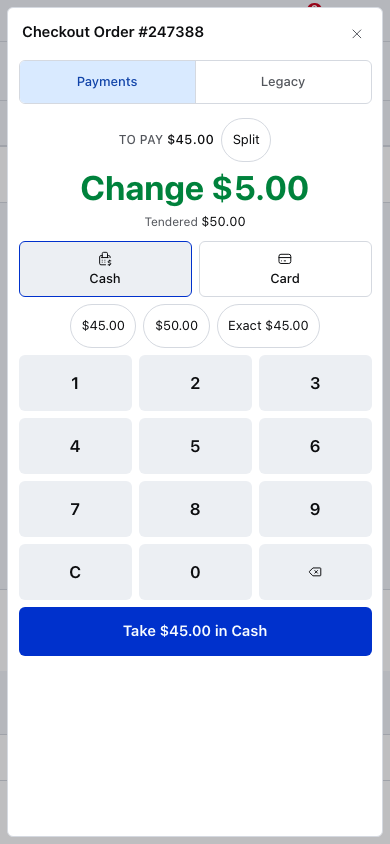
- Payments tab.
- Legacy tab.
- To pay, with the balance.
- Split.
- Change.
- Tendered.
- Cash, selected.
- Exact, with the other quick amounts.
- Keypad.
- Take.
Taking a payment offline
Methods you record yourself work offline only on a sale that reached your store before the connection dropped: its order number shows above the items. Card readers and online payment methods need a connection.
When the POS loses its connection, Offline appears in the register bar and above the amount, next to Split. You can still record payments taken at the till, such as cash or a card on your own terminal: their tiles say Sent later and Store may refuse. The payment is recorded on the device and sent when the store is reachable. A card reader or another method that needs a connection moves to the not available right now line until you are back online.
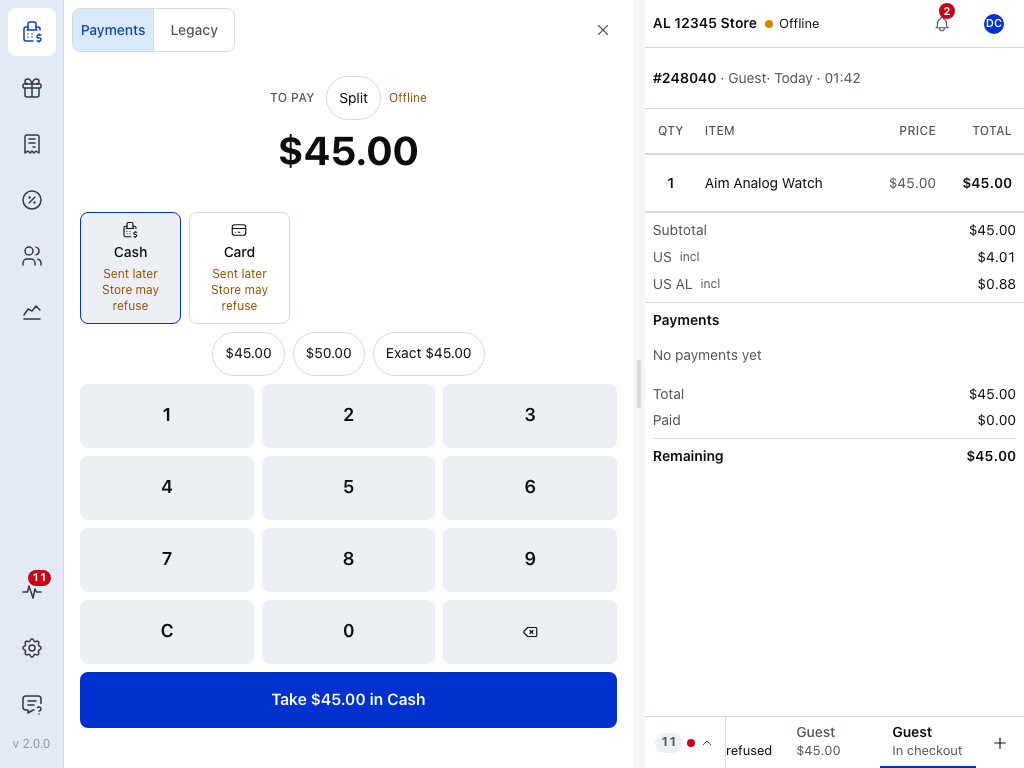
- Offline — the POS can't reach your store. It shows in the register bar too.
- Order number — the sale has reached your store, so it can be paid offline.
- Sent later · Store may refuse — a cash payment waits on this device until the store is back, and the store can still turn the sale down when it arrives.
- Card — the same for a card payment you record.
- Take $45.00 in Cash — asks you to confirm first.
Press the button and the POS asks Take $45.00 in Cash while offline? Confirm, and the sale is held on this device and sent when the store is back. If the store refuses it, the sale appears under Needs attention in Orders.
A sale started while offline has no order number yet, and until it reaches your store, Cash and Card can't be used either. With no payment method left, the pane holds only No connection: Payments need one; the sale is saved in your open orders. Press Back to the register, and take the payment from the open order when you're back online. See Take a payment offline.
Close the payment screen
✕ goes back one step:
- With no payment taken, it closes the pane and takes you back to the cart. The order stays open.
- With a payment taken, it opens the cancel view instead of leaving checkout. See Cancelling a Payment.
- With Split on, it works the same way; it doesn't close the split first. See Split Payments.
In a browser, Esc does the same, unless you are typing in a field or a dialog is open. On Android, so does the back button.
An order with nothing left to pay, such as a fully discounted one or a reopened sale that is already paid, shows a single Done button instead of the keypad.
If something goes wrong
Take is greyed out. Choose a tile, enter an amount above zero, or open Why Take is greyed out.
"Card is not available right now", or "2 not available right now". The POS folds methods it can't use at the moment under one line. Tap it to see why each one is unavailable. See Unavailable tiles.
"No payment methods are enabled for the POS." No payment method is turned on for the POS. A manager turns one on in Checkout settings.
"Only … is due — Card can't give change". You entered more than the balance on a method that gives no change. Enter the balance. If the customer is paying in cash, tap Cash instead.
"Open the register before completing the sale". The register is closed. See Open the Register.
A payment method you turned on has no tile. See Gateway not appearing at checkout.
"The store isn't answering". The order is still saving. Keep waiting, or go back to the cart. See Slow store.
"Order not saved — the store refused it". Open Store health from the message to see why.
"The store has not answered the last payment". Press Try again to confirm it. It will not be taken twice.
More fixes are in Checkout Troubleshooting.
More payment methods with WCPOS Pro
The free plugin turns on Cash and Card only. The methods below need WCPOS Pro. See Pro license.
Pro adds the other payment methods on your store:
- WooCommerce's cash on delivery, bank transfer and cheque methods get a tile and are recorded like Card. Cash on delivery gives change, like Cash. The order takes the status set for that method in Checkout settings: On hold by default for bank transfer and cheque, because the money arrives later.
- Card readers get a tile. With it selected, the button reads Send … to and sends the amount to the reader. See Taking a Payment.
- Email Invoice sends the customer an invoice to pay later. See Email Invoice.
- Every other payment method is on the Legacy tab. See The Legacy Tab.
Turn payment methods on in Checkout settings.