What Search Matches
Start with a few letters of each word you remember, in any order: the list keeps only what has all of them. This page lists what each search box looks at, how your store's search differs from the device's, and, for developers, how to add a field of your own. Can't find something? See When a search finds nothing.
What each search box looks at: Products · Orders · Customers · Coupons · Category, Tag and Brand · Phone numbers
How the words you type are matched
- Every word must match. Spaces separate your search into words. Every word must appear somewhere in the product, order or customer details listed below; the words can be in any order.
shirt lovelacefinds an order for Ada Lovelace that has a shirt in it. - Any part of a word.
saippuafindsKuorintasaippua, andjofindsBjorn. There is no minimum length outside the Logs screen. - Not capitals or accents.
cremefindsCrème. - Punctuation inside a word stays.
0.4,K-2,3/4and a whole email address are each one word, never split at the dot or dash.
For example:
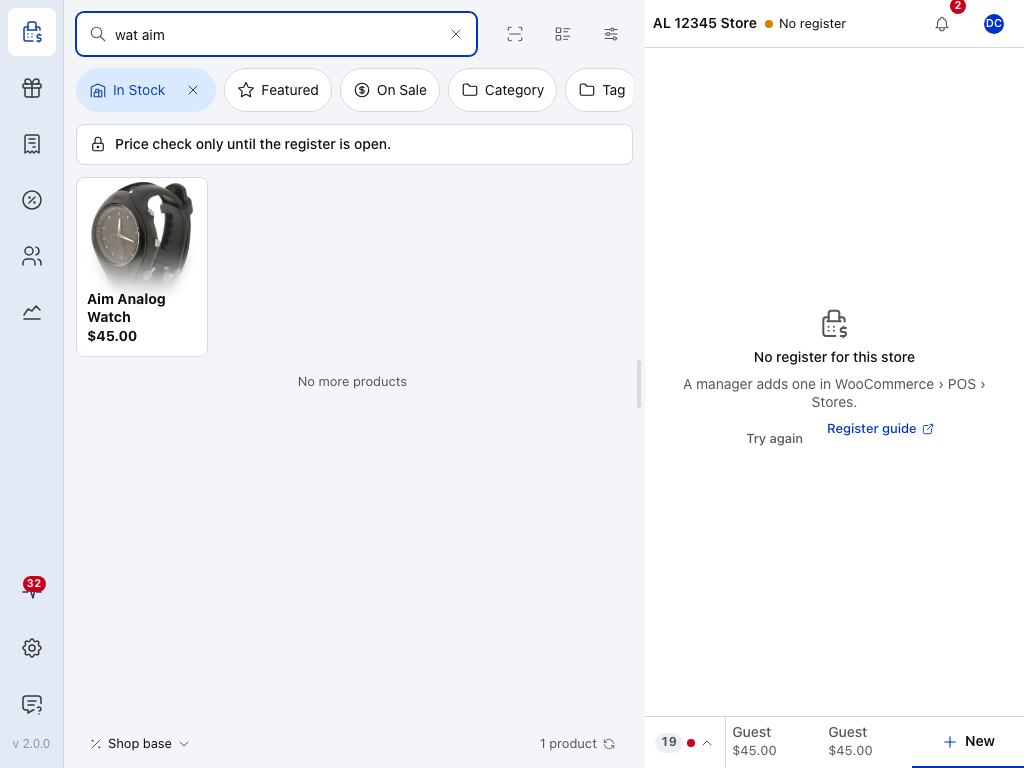
- Search products —
wat aimis two words. Each one is part of a word in the name, and they are typed in the other order. - Aim Analog Watch — the one product with both words in it.
- … product — how many products match. Out-of-stock products are not counted while In Stock is lit; see Search & Filtering.
The list updates a moment after you stop typing. Clear the field to get everything back. Results that come from your store follow these rules too, with a few differences.
Exceptions: Logs searches and punctuation around a word
- Logs. On the Logs screen, a word shorter than three letters is left out of the search.
- Punctuation around a word. Leave it out: brackets, quotes, a
#before an order number, a comma or full stop after a word. The device ignores it ((shirt)findsshirt,#4120finds order 4120), but your store searches for it as typed, so there#4120does not find order 4120.
Phone numbers
Type a phone number as digits only, with no spaces, brackets or dashes. The digits are compared with the digits of the stored number, however it was written:
0412finds(04) 1234 5678.412345finds+61 412-345-678.0412does not find+61 412 345 678.
The country code and the leading 0 are not converted: 0412 and +61 412 are different digits.
What each search box looks at
Products
On the Product Panel and the Products screen:
- Name, SKU and barcode.
- A variable product also shows when one of its options matches by SKU or barcode.
The barcode is whichever field your store uses for barcodes; see Barcode Field. A barcode scan is not a search: it looks for that exact code and adds the product to the cart. See Barcode Scanning.
Orders
On the Orders screen:
- Order: the order number.
- Billing: first name, last name, company, email, phone.
- Shipping: first name, last name, company, phone.
- Items: each line item's name and SKU.
A line item matches by the name it was sold under, so an order is still found after the product is renamed. The shipping names are searched because a delivery or click-and-collect order is often looked up by the person collecting it, who is not always the person who paid.
Customers
On the Customers screen and in the cart's customer search:
- Customer: first name, last name, email, username, tax IDs.
- Billing: first name, last name, company, email, phone.
- Shipping: first name, last name, company, phone.
Coupons
On the Coupons screen and in the cart's coupon search:
- Code and description.
Category, Tag and Brand
In the Category, Tag and Brand filter lists:
- Name.
On the device and in your store
A search looks at what is already on the device first, so results show at once. For products, customers and orders it also asks your store, so a record this device has not downloaded yet still turns up. Coupons and the Category, Tag and Brand lists are searched on the device only. Offline, every search finds only what is on the device.
Your store matches the same fields by the same rules, with a few differences.
Differences for order numbers, customer names, item SKUs and long searches
- Order number. Your store finds the order with exactly that number, and also matches the number a sequential order number plugin gives an order. The device also finds numbers that contain it:
412finds order 4120 on the device. - Customer display name. Your store also matches the name WordPress displays for the customer.
- Line item SKU. Your store matches the product's current SKU; the device matches the SKU the line had when the order last came down to it.
- Long searches. Your store matches up to ten words one by one. Keep a search to a few words.
When a search finds nothing
- Nothing comes back — check each word for a typo: one word that matches nothing hides every result. Take a word out and try again.
- The phone number isn't found — type the digits only, as they were stored. Leave out a country code if the number was saved without one, and the other way round.
- It's offline — only records already on the device are found. See Store health → Database for how much is on this device.
- On the Logs screen — a word shorter than three letters is left out of the search.
- The product list stays short — a filter is still on. See Search & Filtering.
For developers: change the searchable fields
Why there is no setting, and how to add a field of your own
Why there is no setting for search fields
The fields above are fixed, in the POS and in WP Admin. A field on a record only matches when the word you typed is in it, so searching more fields does not bring back wrong results, and a fixed list keeps the device and your store searching the same fields. A field your store adds, such as a loyalty number, is added by a developer with one filter.
How your store matches
- Order numbers are matched against the WooCommerce order ID and the
_order_numberand_order_number_formattedmeta that sequential order number plugins write. - Capitals and accents are left to the database collation. WordPress's default collation ignores both, so
cremestill findsCrème.
Add a field of your own
wcpos_search_fields receives a collection's search declaration and the collection slug. Before WCPOS 2.0 this filter was named woocommerce_pos_search_fields; that name still works, but it is deprecated since 2.0 and is removed in 2.2 at the earliest (see Hook naming). To make a customer findable by a loyalty number stored in user meta:
add_filter( 'wcpos_search_fields', function ( array $search, string $collection ) {
	if ( 'customers' === $collection ) {
		$search['meta'][] = 'loyalty_number';
	}
	return $search;
}, 10, 2 );
For orders, append to $search['posts']['meta']; the key is searched in post meta on legacy storage and in the order meta table under HPOS.
A key added for customers or orders is searched in both places: your store matches it in its query, and the POS adds it to its search on the device as well, because wcpos/v2/site publishes the keys a store added. Three limits:
- Only keys without a leading underscore reach the device. A key such as
_privateis searched by your store only. - A key added later reaches the POS the next time it starts: a reload in the browser, or opening the app again.
- Keys added for products or variations (
$search['posts']['meta']) are searched by your store only.
Store the value the way the cashier will type it, or as digits for a number: the filter adds a field to the list, it does not change how a word is matched.