Checkout Performance
If you're experiencing slow performance during the checkout process, this guide will help you identify and resolve the most common causes.
How WCPOS Checkout Works
The WCPOS checkout opens a modal with an iframe/webview that loads a stripped-down version of the WooCommerce Order Pay template. This is essentially the same page as the Customer Payment page that customers see when paying for orders online.
You can view the checkout template in the WCPOS plugin repository: templates/payment.php
Built-in Optimizations
WCPOS includes several optimisations to improve checkout performance:
- Stripped-down template - Removes unnecessary theme elements and clutter
- Selective script/style loading - Only essential scripts and styles are loaded
- Minimal DOM structure - Reduces the complexity of the checkout page
However, some scripts and styles cannot be completely disabled because payment gateways may require them to function properly.
Common Performance Issues
1. Unnecessary Scripts and Styles
Problem: Themes and plugins add scripts and styles that aren't needed for checkout, slowing down page load times.
Solution: Use the Checkout Settings to disable unnecessary resources:
- Click the Checkout Settings button in the checkout modal
- Try disabling theme styles first:
- wp-block-library
- classic-theme-styles
- Your theme's custom styles
- Disable non-essential WooCommerce scripts:
- wc-add-to-cart
- selectWoo (if not needed by your gateway)
- html5shiv
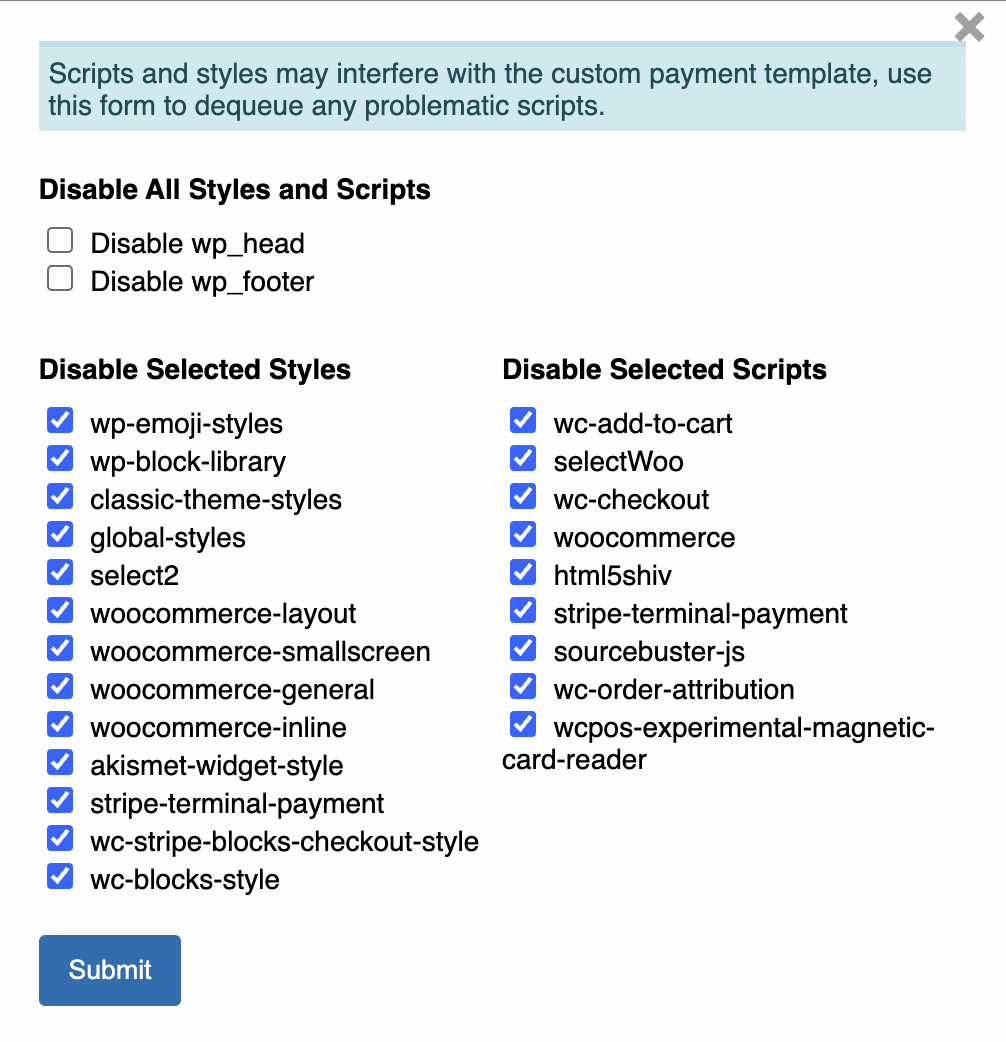
Form to disable all styles and scripts
Don't disable scripts that your payment gateway requires. If a payment method stops working after disabling a script, re-enable it.
2. Plugin Interference During Order Creation
Problem: Plugins that hook into the order creation process can cause significant delays. For example, accounting plugins like Xero may send order data to external servers, blocking the checkout process.
Troubleshooting Steps:
- Test on staging - If you have a staging server, disable all plugins except WooCommerce and WCPOS
- Test checkout speed - Process a test order and note the performance
- Enable plugins gradually - If performance improves dramatically, re-enable plugins one by one to identify the culprit
- Contact plugin developers - If a specific plugin is causing issues, contact the developer for optimisation advice
Common problematic plugin types:
- Accounting/bookkeeping integrations (Xero, QuickBooks)
- Email marketing tools that trigger on order creation
- Inventory management systems
- Complex shipping calculators
- Third-party analytics tools
3. Server Resource Limitations
Problem: If your server is under load or lacks sufficient resources, all operations including checkout will be slow.
Monitoring and Solutions:
-
Monitor server performance:
- CPU usage during checkout
- Memory consumption
- Database query performance
- Network latency
-
Optimise server resources:
- Increase PHP memory limit
- Optimise database queries
- Use caching plugins (but test compatibility)
- Consider upgrading hosting plan
-
Database optimisation:
- Clean up old order data
- Optimise database tables
- Remove unnecessary plugins and themes
WordPress Developer Best Practices
WordPress developers should use wp_enqueue_scripts to properly add scripts and styles to pages. Unfortunately, some plugin and theme developers don't follow best practices and insert code directly into templates, making it impossible to dequeue these resources easily.
If you're experiencing issues with scripts or styles that can't be disabled through Checkout Settings:
- Contact the developer - Ask them to follow WordPress coding standards
- Use child themes - Override problematic templates in a child theme
- Custom hooks - Use WordPress hooks to remove problematic code on checkout pages
Performance Testing
To test checkout performance improvements:
- Baseline measurement - Time how long checkout takes before making changes
- Make one change at a time - This helps identify which changes have the most impact
- Test with real payment gateways - Don't just test with cash payments
- Test on different devices - Mobile devices may show different performance characteristics
Quick Wins
Here are the most effective performance improvements you can make:
- Disable theme styles - Often provides the biggest improvement
- Remove unnecessary WooCommerce scripts - Reduces JavaScript execution time
- Audit order creation hooks - Identify and optimise slow plugins
- Optimise images - Ensure any images in the checkout are optimised
- Use a performance monitoring plugin - Track improvements over time
When to Seek Help
Contact WCPOS support if:
- Checkout takes longer than 10 seconds consistently
- You've followed this guide but still experience issues
- You suspect a specific plugin but can't identify it
- You need help optimising server resources