General Settings
The General Settings page allows you to configure core WCPOS functionality. These settings affect how products are displayed, how quantities are handled, and how barcode scanning works.
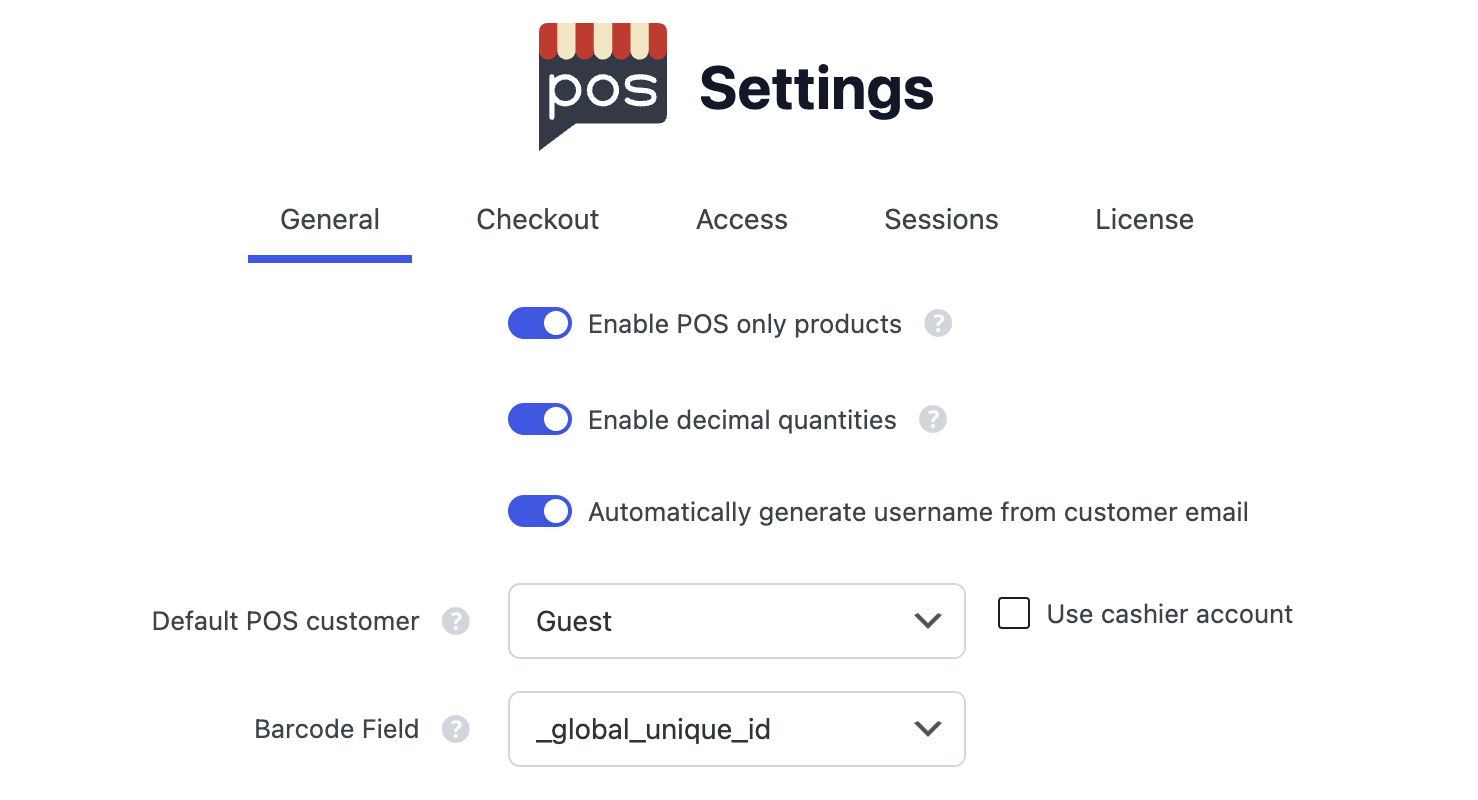
General Settings in the WP Admin
Enable POS Only Products
This setting adds visibility options to your products, allowing you to control whether they appear in your online store, POS, or both.
Only enable this setting if you need to hide products from either your online store or POS. When enabled, it adds an extra database lookup for every product request.
For detailed information on using this feature, including how to set visibility on individual products and bulk editing, see POS Only Products.
Enable Decimal Quantities
This setting allows customers and staff to enter decimal quantities when adding products to the cart.
Examples of decimal quantities:
- 0.25 (quarter unit)
- 1.5 (one and a half units)
- 2.75 (two and three-quarter units)
Useful for:
- Products sold by weight (e.g., 0.5kg of coffee beans)
- Fractional services (e.g., 1.5 hours of consultation)
- Bulk products that can be sold in partial quantities
Restore Stock on Order Delete
When enabled, WCPOS automatically restores product stock when a POS order is trashed or deleted — so cancelling a mistaken sale puts the items back into inventory. This setting is on by default.
Turn it off if you reconcile stock another way and don't want deleted POS orders to adjust inventory.
Automatically Generate Username from Customer Email
When enabled, WCPOS will automatically create usernames for new customers based on their email addresses during checkout. This streamlines the customer creation process and ensures consistent username formatting.
Default POS Customer
Select the default customer that will be assigned to new POS orders. Common options include:
- Guest: Orders are not associated with any user account
- Cashier: Orders are associated with the logged-in cashier's account
- Walk-in Customer: Orders are associated with a specific customer account (you'll need to create this account first)
Use Cashier Account
When enabled, the cashier's user account will be used as the default customer for POS orders instead of the selected Default POS Customer.
Let Customers Download Receipts
When enabled, WCPOS adds a Receipt button to My Account → Orders on your online store, so customers can download their own order receipt as a PDF rendered with your WCPOS template. This setting is off by default.
The Receipt template for customers dropdown below the toggle chooses which template they get. It defaults to Use active receipt template, so it stays in sync with your POS; pick a specific template to give online orders a different look (for example a full-page invoice).
See Online Store Receipts for the full guide, including eligible order statuses, the [wcpos_receipt] shortcode, and developer filters.
Barcode Field
This setting determines which product field WCPOS will search when scanning barcodes or using the barcode search functionality.
Use _global_unique_id — WooCommerce's Global Unique ID field, introduced in WooCommerce 8.2 (July 2024). It's designed to store GTIN, UPC, EAN, or ISBN codes and is the recommended option for new installations. If you're not using the Global Unique ID field, _sku (the product SKU / Stock Keeping Unit field) is a good fallback.
Common plugins → meta key
If you're using a barcode management plugin, you may need to use its specific meta key instead:
| Plugin / field type | Meta key |
|---|---|
| WooCommerce Global Unique ID (default, recommended) | _global_unique_id |
| Product SKU (fallback) | _sku |
| EAN plugins (European Article Number) | _ean, _ean13, _ean8 |
| UPC plugins (Universal Product Code) | _upc, _upc_code |
| GTIN plugins (Global Trade Item Number) | _gtin, _gtin13, _gtin14 |
| Generic barcode fields | _barcode, _product_barcode |
| WooCommerce Product Barcodes | _barcode_text |
| ATUM Inventory | _atum_barcode |
You can use any custom meta key that stores barcode data. Simply enter the meta key name (including the underscore prefix if applicable) in this field.
Finding your plugin's meta key
If your plugin isn't listed above, find the correct meta key like this:
Add a barcode to a product
Edit a product in WP Admin and add a barcode using your plugin.
Check the plugin documentation
Look in the plugin's documentation for the meta key name it uses.
Or inspect the database
Inspect the database wp_postmeta table to see what meta key was created for the product.
When you change the barcode field, WCPOS rebuilds the local catalogue's barcode index so scans match the newly selected field — you don't need to clear and re-download your products by hand.
If scans still aren't matching, you can force a full refresh: go to the Products screen, long press the sync icon (↻) at the bottom, and choose "Clear and Refresh". Then test a scan to confirm the new field is being used.
Privacy
The Allow anonymous usage data toggle controls whether WCPOS collects anonymous usage analytics to help improve the product. It's a genuine opt-in/opt-out — no customer data, prices, or store address are ever collected. Use the Learn more link beside the setting to see exactly what is and isn't gathered.
Store Tax IDs
Add the business tax identifiers — VAT number, ABN, GSTIN, EIN, or local company-registry numbers — that WCPOS prints on POS receipts and invoices. WooCommerce has no built-in field for these, and many regions need more than one.
See Store Tax IDs for the full guide.
Customer Tax IDs
WCPOS keeps a tax-ID field on your customers and copies it onto their orders at checkout. Because different plugins store this field under different names, WCPOS detects which plugin you have installed and writes to the right one automatically. The Tax IDs section here also lets you override the field name if you need to.
See Customer Tax IDs for the full guide.