Store Health
Store health shows what sits on this device, what hasn't reached your store yet, and how hard the POS is working your server. Open it from the pulse icon at the foot of the menu. It has three tabs: Database, Performance and Logs. On a tablet or computer it opens on Database; on a phone you pick a tab from a list.
A red number on Store health counts new errors in the log. Opening Logs clears it.
Here because something went wrong? Start with the message you saw:
- Order not saved — the store refused it at checkout
- … was not saved to the store after adding a new customer
- checking… that won't clear in the table
- changes waiting to send that won't go down
Database
The Database tab answers two questions: is this till ready to sell, and did everything reach your store?
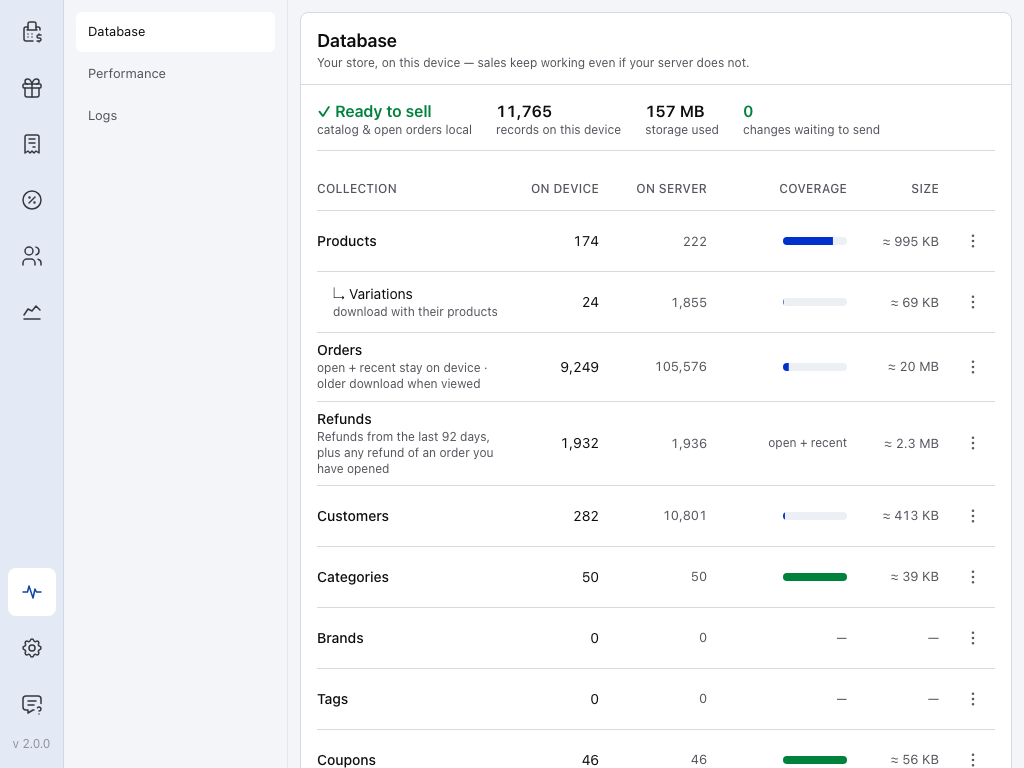
- Store health — the pulse icon at the foot of the menu, with a red number when the log has new errors.
- Database — what is on this device and what is waiting to send.
- Performance — how often this till checks your store, and how your server is coping. See Performance.
- Logs — everything this device did, for 30 days. See Logs.
- Ready to sell — appears once the first products are on the device. Being offline doesn't change it. Until then it reads Preparing….
- records on this device — every product, order, customer and other record stored here.
- storage used — what the POS takes up on this device, cached images included.
- changes waiting to send — sales and edits on their way to your store. Red above 0. After an outage, it's back to 0 once everything has reached your store. It leaves out open orders you haven't synced (Sync order) and changes listed in a panel (When something needs you): those haven't reached your store either.
- The table — each kind of record, on this device and in your store. See What's on this device.
When something needs you
When something needs a decision, a panel appears between the figures and the table. Stuck records, refused changes and held changes wait for you to choose an action. Receipt emails marked waiting are the exception: they retry by themselves while the till can reach your store. Open the one whose title you see:
N records need attention
Records that need attention
The panel's title counts the records. It names one of them and says why: it can't upload, it can't download from your store, or it must be removed from this device. Each kind of record with a stuck one shows a red N stuck badge in the table.
- Fix record — opens the record so you can correct it.
- Retry — tries again now, when trying again can help.
- View log › — opens Logs.
N changes never reached your server
Changes that never reached your server
Your store refused a change, such as a sale or a new customer, and gave its reason. The POS won't retry it on its own.
- Send again — rebuilds the change from the record as it is on this device now and sends it. Correct the record first if the reason asks for it. sent again N× counts the tries.
- Discard, in the ⋮ menu — drops this device's change and keeps your store's version. If the record never reached your store, discarding deletes it from this device, and the dialog says so.
N changes were held — your store reported newer versions
Changes held because your store had a newer version
Someone changed the same record first, on another till or in WooCommerce. This device held its change instead of overwriting theirs.
Send again here is not a plain retry: this device's change goes in over the newer version in your store. Open record shows this device's version, so compare it with the same record in WP Admin first (a site admin may need to do this). Only a delete asks you to confirm.
- Open record — shows this device's version of the record, on rows that offer it. Your store's version is in WP Admin.
- Send again — keeps this device's change and sends it on top of your store's version.
- Use server version — drops this device's change and puts your store's version back on this device. Nothing is sent. On some rows, such as a record your store has never had, this choice is Discard device change in the ⋮ menu instead. Its dialog says what happens: it may delete this device's copy, since there is no store version to put back.
Your server's clock is about … ahead of this device
Server clock warning
The warning says ahead or behind. The two clocks are more than a minute apart, so order times, receipts and reports may be wrong. Ask whoever runs your website to check its date, time and timezone. The warning stays for 24 hours after the gap was last seen.
N receipt emails waiting to go out
Receipt emails waiting to go out
The panel lists receipts emailed from this till that haven't left yet.
- waiting — tried again while the till can reach your store.
- failed — has stopped trying, and shows why. Press Send again, or Remove to drop it. Remove can't recall an email that has already started to send.
A row marked Deletes from your store removes the record from your store if it goes through. Send again on it asks you to confirm with Send delete.
What's on this device
The table lists each kind of record: how many are On device, how many your store has On server, a Coverage bar and the Size. Variations sit under Products and download with their products, so their bar fills as products are used. Under it, the storage breakdown says what else takes up space.
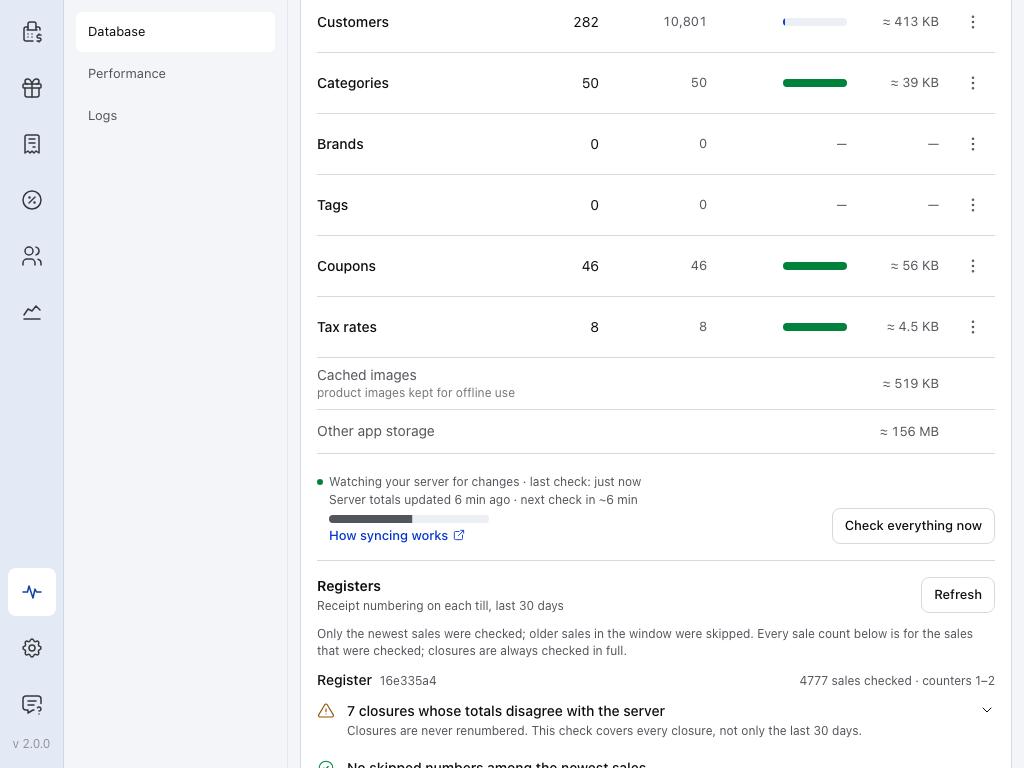
- Customers — a partial bar is normal: customers download a little at a time while the till is quiet. Orders read partial too, because the till keeps open and recent orders and older ones download when someone opens them.
- ⋮ — the row's menu: check now or clear and re-download.
- Cached images — product pictures kept so the till works offline.
- Other app storage — space the POS uses that it can't put under another row.
- How syncing works — opens Download & Sync. The lines above it say when this till last checked your store, when the On server totals were updated, and when the next check is due.
- Check everything now — runs a full check against your store straight away.
The breakdown only shows rows that hold something. Others you may see:
- Logs & sync bookkeeping — the activity history, temporary working copies and app settings for this store. Nothing to act on.
- Other cashiers on this store — the same store signed in as someone else on this device.
- Other stores on this device — a count and a size, never their names.
- Signed-out stores & older versions — left behind by earlier sign-ins and app updates.
checking… in place of a row's Coverage bar means the till doesn't have a fresh total from your store yet; On server keeps the last total it had. Totals refresh every 15 minutes. server busy… in the same place means the till is easing off your server; see Your server, over time.
Check now, or clear and re-download
Each row's ⋮ menu has two actions.
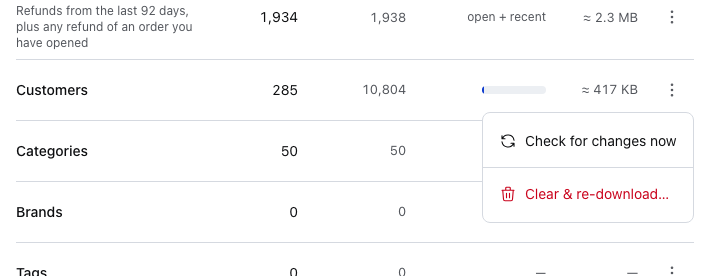
- Check for changes now — checks your store for that kind of record now, instead of waiting for the next check. Use it after you change something in WooCommerce.
- Clear & re-download… — removes this device's copy and fetches it again. The dialog says how many records and how much space go, and that your store keeps them. While it runs, the row reads Re-downloading — N so far.
After a clear, a low count is expected: records that download on demand come back as they're used. Prefer this to clearing all local data, which signs you out.
Registers
At the foot of the tab, Registers checks receipt numbering on each till over the last 30 days. It asks your store, so it needs a connection.
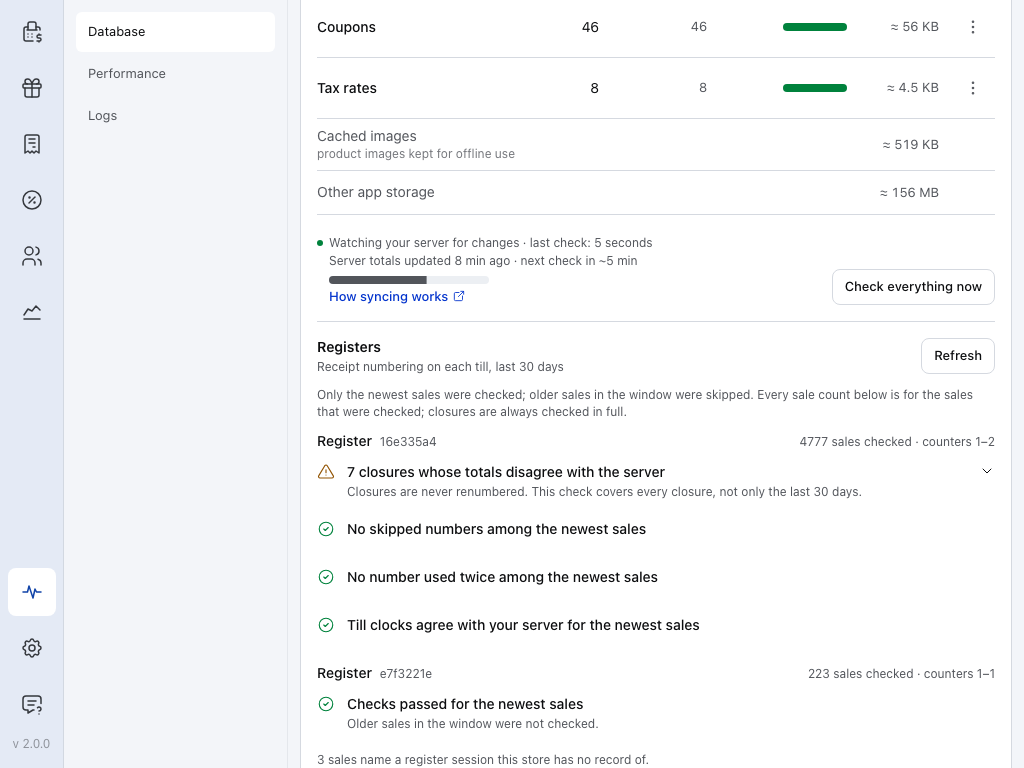
- Registers — receipt numbering on each till. On a busy store only the newest sales are checked, and the panel says so.
- Refresh — asks your store again.
- A register — how many sales were checked and the receipt counters they used, then one line per check: skipped numbers, a number used twice, till clocks against your server, and closures. A tick means the check passed; a warning sign names what to look at. Press the arrow on a warning for the detail.
A last line may count sales from a till or register session your store has no record of.
What each warning means, and what to do
- N skipped numbers — a receipt number was taken but the sale never completed. Nothing is lost, and there's nothing to do.
- Counter restarted on N tills — the same receipt number is on more than one sale. Nothing is lost. The detail lists the orders, if you need to tell them apart.
- N sales stamped by a clock running ahead — that till's clock was ahead of your server. Set the date and time on the till the detail names.
- N sales were received later than their tills' time — usually offline sales that were sent later. Nothing to do.
- Closure numbers skipped, printed with a different number, or totals disagree with the server — closures are never renumbered, and this check covers every closure, not only the last 30 days. The detail names each closure by number. Show it to whoever reconciles your registers, with that closure's printed report (Reconciliation).
- Sales from tills this store hasn't registered — nothing is lost. The detail lists each till and its sales.
Performance
The Performance tab shows how often this till checks your store for changes, and how your server is coping. Most stores never change anything here: leave Balanced selected (see Sync presets).
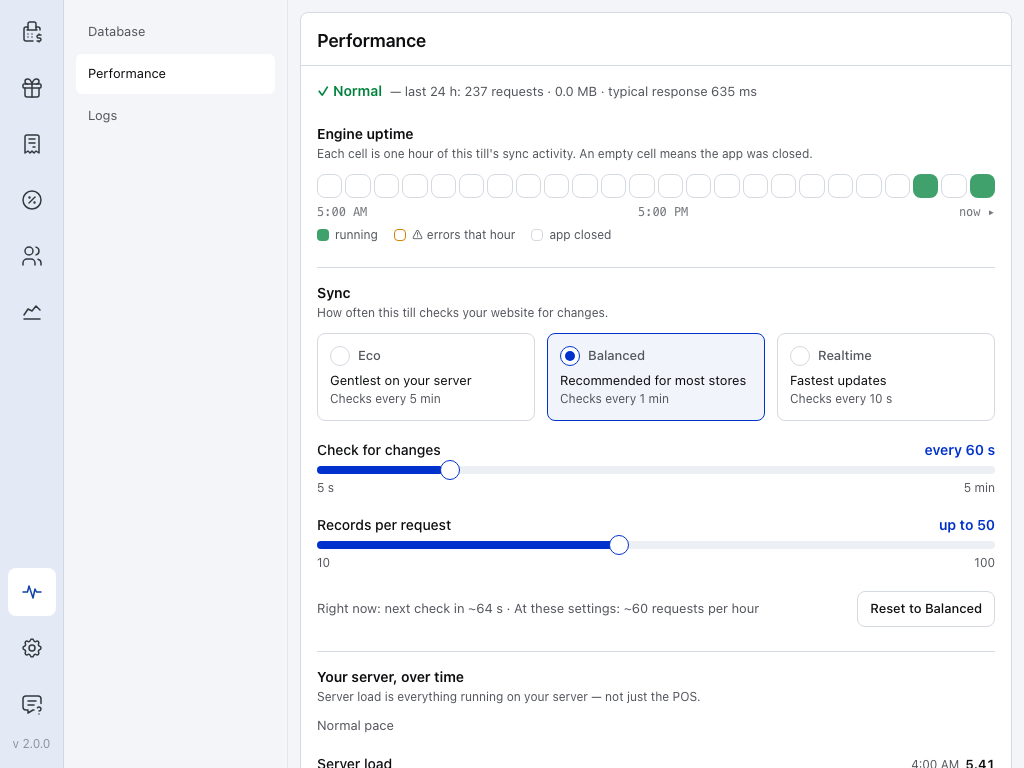
- ✓ Normal — or ⚠ Needs attention when the till is offline, sync is blocked, the first download failed or a kind of record has an error. Then the last 24 hours on this till: requests, data and typical response time. The data figure counts only responses that state their size, so it can read lower than the real traffic, even 0.0 MB.
- Engine uptime — one cell per hour for the last 24 hours. Green: requests and no errors. Amber: at least one request failed that hour. Empty: the app was closed.
- Eco — gentlest on your server.
- Balanced — the default, right for most stores.
- Realtime — fastest updates, for tills that need to see each other's sales quickly.
- Check for changes — how often the till asks your store what changed, from 5 seconds to 5 minutes.
- Records per request — how many records it fetches at a time, 10 to 100.
- Right now — when the next check is due, and about how many requests an hour these settings make.
Sync presets
Leave Balanced unless you have a reason. Choose Eco on shared or budget hosting. Choose Realtime when several tills must see each other's changes fast and your server can take it. Changes apply at once.
The preset is saved on this device only. Change it on every till you want to tune.
Preset values, custom settings and the countdown
| Preset | Checks every | Records per request |
|---|---|---|
| Eco | 5 min | 25 |
| Balanced (default) | 60 s | 50 |
| Realtime | 10 s | 75 |
Moving a slider makes the setting Custom; Reset to Balanced puts the default back.
A countdown a little longer or shorter than your setting is normal: checks are spread out so tills don't all ask at once. On Realtime, or a custom setting under a minute, a till nobody has used for ten minutes also checks less often, never slower than once a minute, and speeds up again when someone uses it. Balanced and Eco don't slow down. For the numbers behind this, see Sync Performance.
Your server, over time
Further down, Your server, over time shows the pace the till is keeping and two charts for the last 24 hours. The pace line reads one of these:
- Normal pace — the till checks at your setting. It may add that your server reports elevated or high load; the till only slows down if its answers slow down too.
- Easing off — checking N× less often — your server asked the POS to slow down, returned errors, timed out or answered slowly. The till slows itself and speeds up again when your server recovers.
- Paused until … — your server asked the POS to wait until that time. You can keep selling while it waits.
The till recovers from both by itself, so there's nothing to change. If Easing off or Paused shows most days, your hosting is struggling: see Server Performance, or choose Eco.
The charts, from the top. Server load counts everything running on your server, not just the POS.
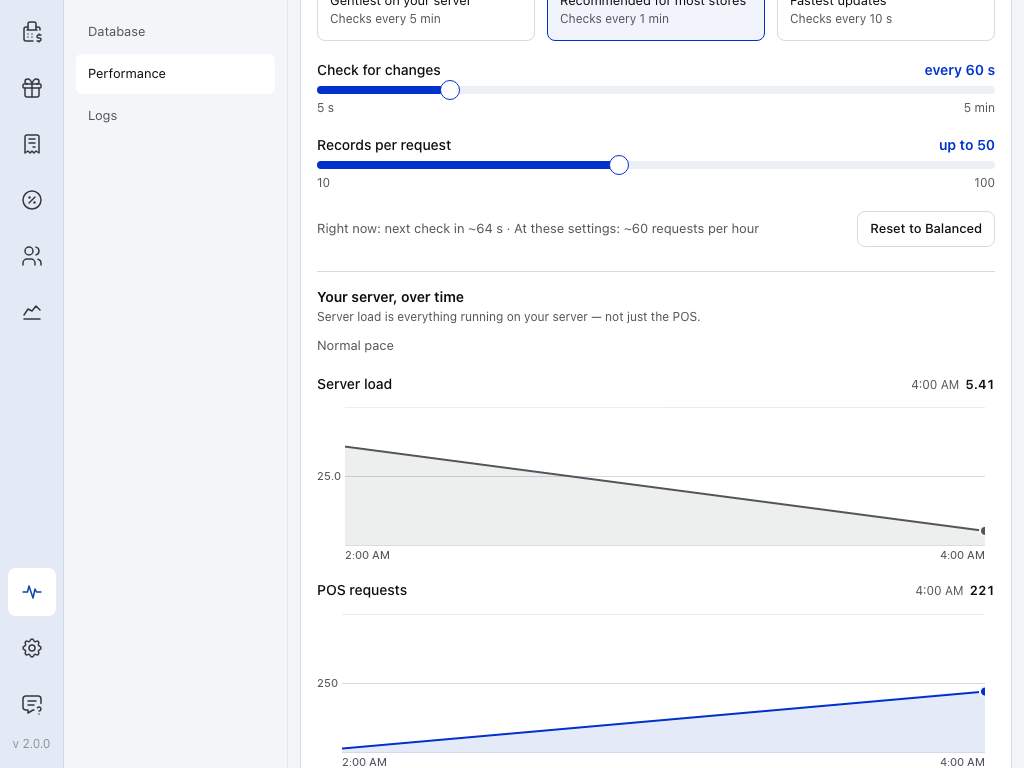
- Right now — the next check, and about how many requests an hour your settings make.
- Pace — Normal pace here. The other states are above.
- Server load — the load your server reports, with the latest figure on the right. If your server doesn't report it, this says so and the rest of the page still works.
- POS requests — how many requests this till made, with the latest figure on the right.
Logs
The Logs tab lists what this device did: sales, syncs, errors. Each entry shows its time, level, event, duration and status. Entries are kept for 30 days.
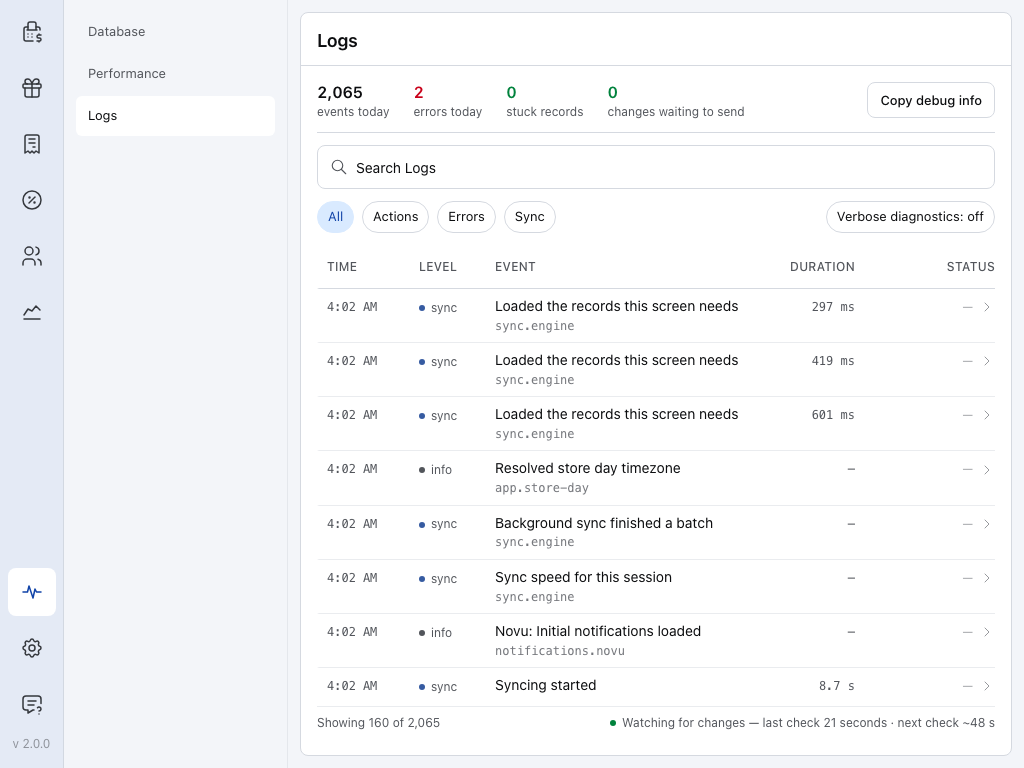
- events today — everything logged today.
- errors today — errors logged today.
- stuck records — records the log shows as stuck. Database lists them with what to do.
- changes waiting to send — the same figure as on Database.
- Copy debug info — copies a report for support. On a phone or tablet app it's Share debug info.
- Search Logs — find an entry by its words or code.
- All — every entry.
- Actions — only what a person did.
- Errors — only errors.
- Sync — only syncing.
- Verbose diagnostics — logs extra detail for support. It switches itself off after 24 hours.
- Watching for changes — when this till last checked your store, and when it checks next.
Tap an entry to open it: what happened, whether a payment was taken, what to do next, and a link to the error code page. Quote the Event code when you contact support. Entries show in the language the till uses today, whatever it used when they were written.
stuck records on Logs counts what the log saw. Database also lists refused and held changes. When the two differ, act on Database.
If something goes wrong
"Order not saved — the store refused it" at checkout
Your store turned the order down, and the message gives its reason. No payment was taken, and you're back at the cart with everything still in it. The order's tab reads Save refused. Fix what the reason names, such as a quantity or a price, and press Checkout again. Pressed again with nothing changed, it only shows the same message. If the reason isn't something you can fix in the cart, press Store health on the message and choose under changes that never reached your server. Send again sends the order as it is on this device now: use it once the cause is fixed in your store. Discard drops this device's change. For a new order that never reached your store, that deletes it from this device, and the dialog says so.
"… was not saved to the store" after adding a new customer
The customer was made on this till, perhaps offline, and your store refused it. The sale goes through as a guest sale, with the customer's addresses on it. In Store health → Database, find the customer under changes never reached your server and press Send again. Once your store accepts the customer, the POS links the order to them, for up to 30 days. See SYNC999.
A row stays on "checking…"
If a row in the table reads checking… for more than about 15 minutes, your store isn't answering for that kind of record. Open Logs and filter Errors.
"changes waiting to send" won't go down
Work down this list:
- Performance status line: if it reads ⚠ Needs attention because the till is offline, get it back online. The changes send by themselves once it is.
- Pace under Your server, over time: Easing off or Paused until … means your server is struggling or asked the POS to wait. Sends that fail for that reason are tried again by themselves, so the count drops once your server recovers.
- Neither? Look on Database for a panel from When something needs you, and open Logs with Errors to see why sends fail.